

Affiliate disclosure: Some links in this article are affiliate links. Pipl Systems may earn a commission on qualifying purchases at no additional cost to you.
Before a new business opens its doors, several systems have to be ready at once. Staff need reliable connectivity, reception needs a working phone, management needs visibility across the property, and the right people need access to the right doors.
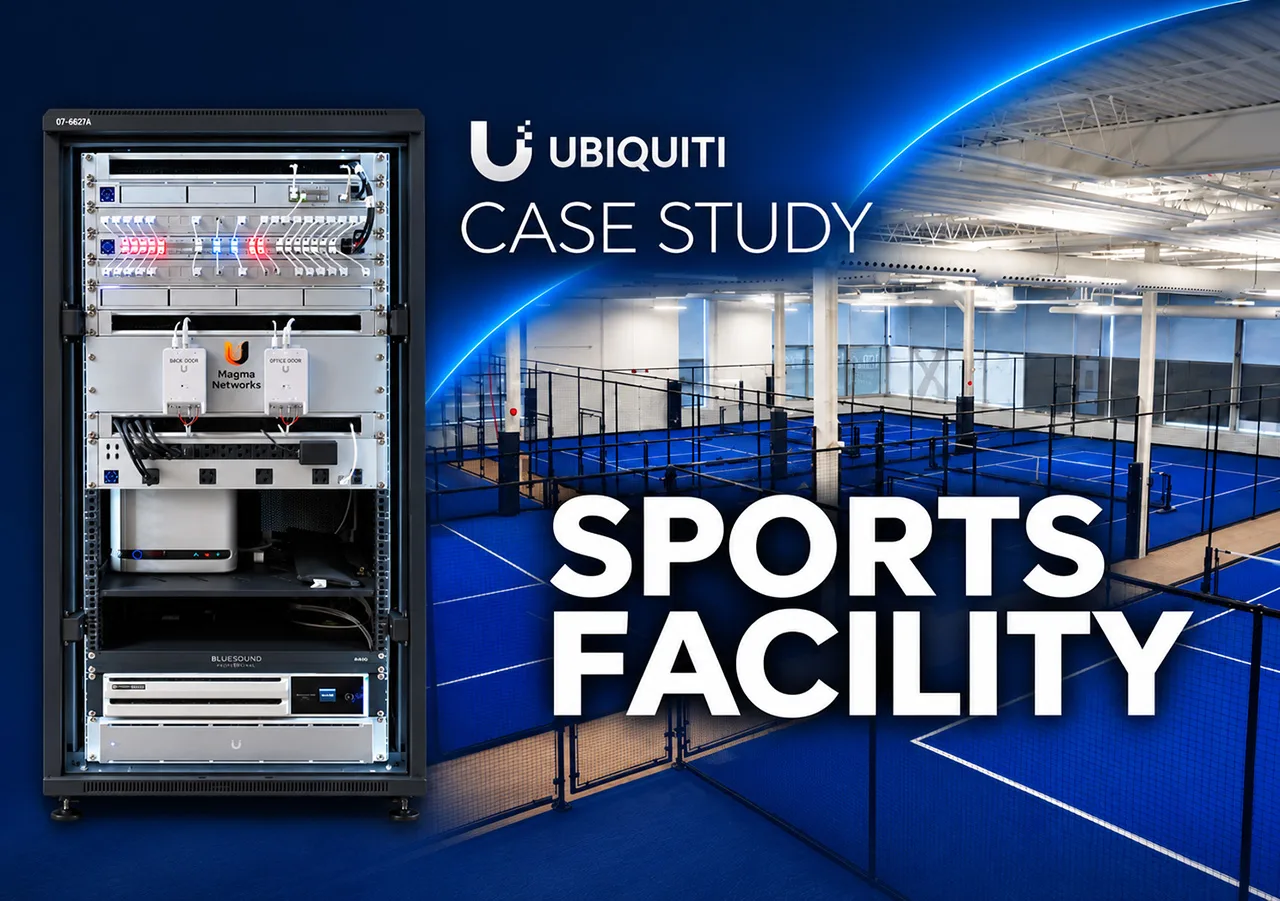
We joined Helder Luis, Founder and CEO of Magma Networks, at PBX Pickleball Club in Toronto to document how he addressed those requirements. This UniFi commercial installation combines Network, Protect, Access and Talk across a five-court indoor sports facility, with Ajax handling intrusion protection as a separate system.
The project was in its final stages before opening when we filmed. Some changes and additions were still planned. This is a site walkthrough and software demonstration, not a long-term reliability test or a promise that the same equipment list fits every business.
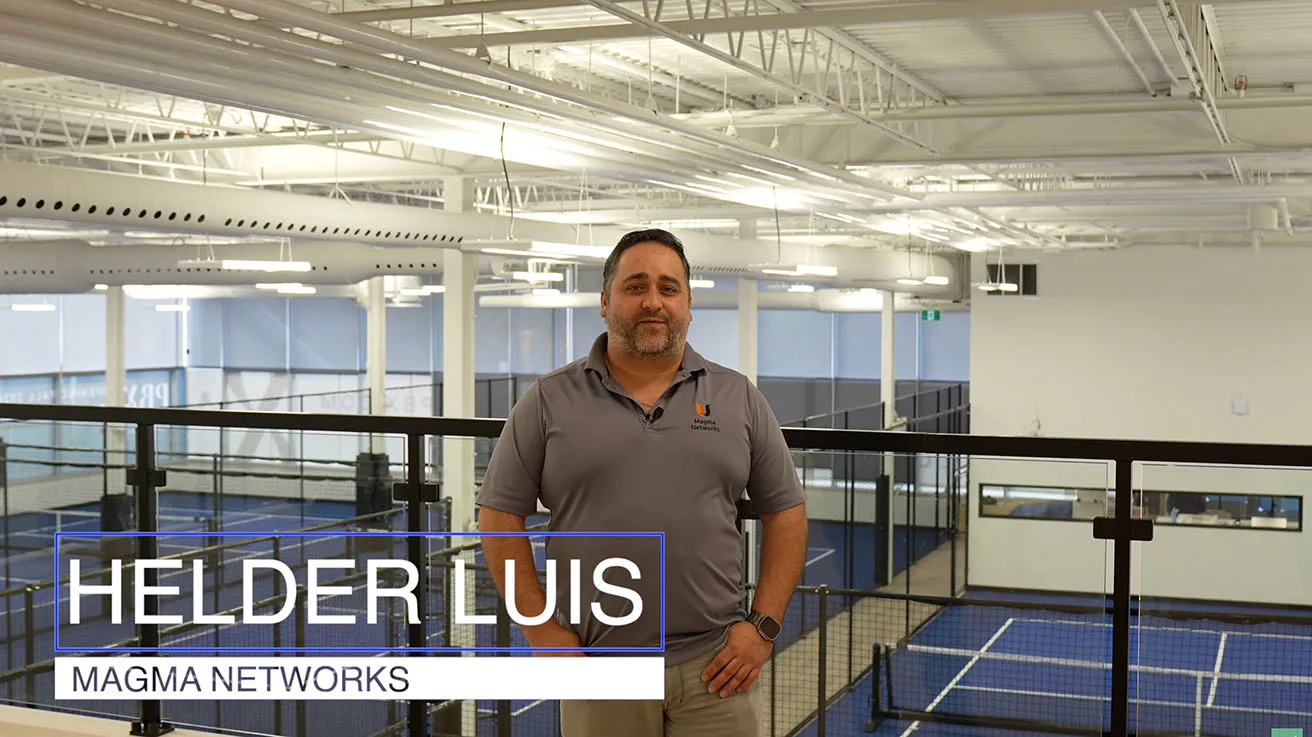
Watch the complete PBX case study. Use the chapters to move through the rack, facility, software and owner interview in the same embedded player.
Video chapters · 30:14
The Project Started with the Business Requirements
Helder explains that the owner initially wanted a certified UniFi installer. Their discussions then moved to practical requirements: which areas cameras should see, how doors should operate, where Wi-Fi was needed, and how staff would use the phone system. Helder’s background at Magma Networks centers on system design, networking and troubleshooting.
The work began about six months before the walkthrough. That lead time matters: a commercial security installation involves choices that affect cabling, doors, other trades and daily operations well before the final device is mounted.
| Business requirement | System or equipment | Practical role |
|---|---|---|
| Connectivity across the club | UniFi Network, switching and access points | Support reception, staff, guests, courts, the mezzanine and connected building equipment. |
| Video coverage and incident review | UniFi Protect, cameras and UNVR | Give authorized management live views, recordings and an incident-documentation workflow. |
| Controlled entry and door operation | UniFi Access, readers, door controllers and physical hardware | Manage credentials, door status, authorized unlocking and opening sequences. |
| Business calling at reception | UniFi Talk and a reception phone | Handle calls and provide supported camera and door controls from reception. |
| Intrusion protection | Separate Ajax hub, keypad, detectors and siren | Arm/disarm the alarm and handle configured intrusion events. |
Inside the Rack: Network, Recording and Power
We started in the electrical room, where the provider connection enters the installation. The rack contains a UDM Pro Max, a Pro Max 48 PoE switch, two patch panels and a UNVR. Helder identifies two 16 TB recording drives. Two door controllers sit near the rack; two others are located closer to the areas they serve.
The two drives describe the installed hardware, not a verified usable capacity or retention period. Those depend on the storage configuration, recording settings and activity. The walkthrough does not establish a particular number of recording days.
The rack also shares space with the audio contractor’s equipment. Cable service loops allow room for maintenance, while labeling helps identify connections. Helder points out the locked enclosure and ventilation, including the heat added when audio amplifiers are operating.
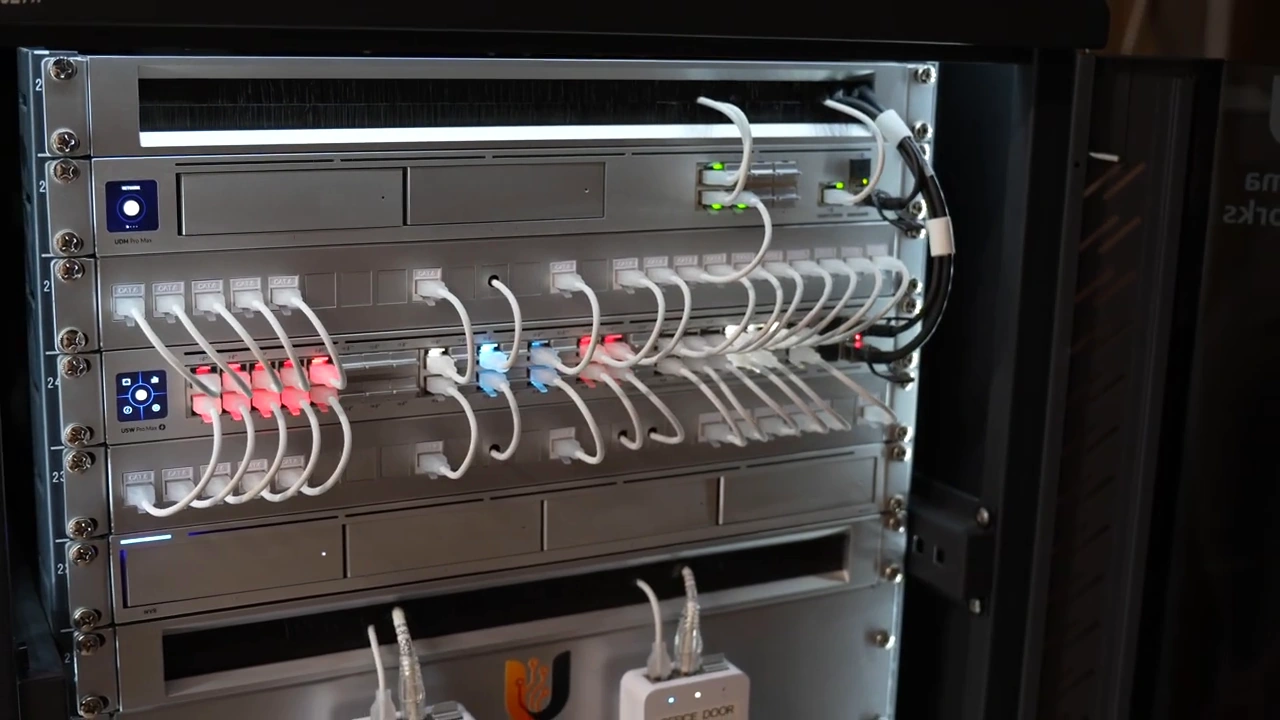
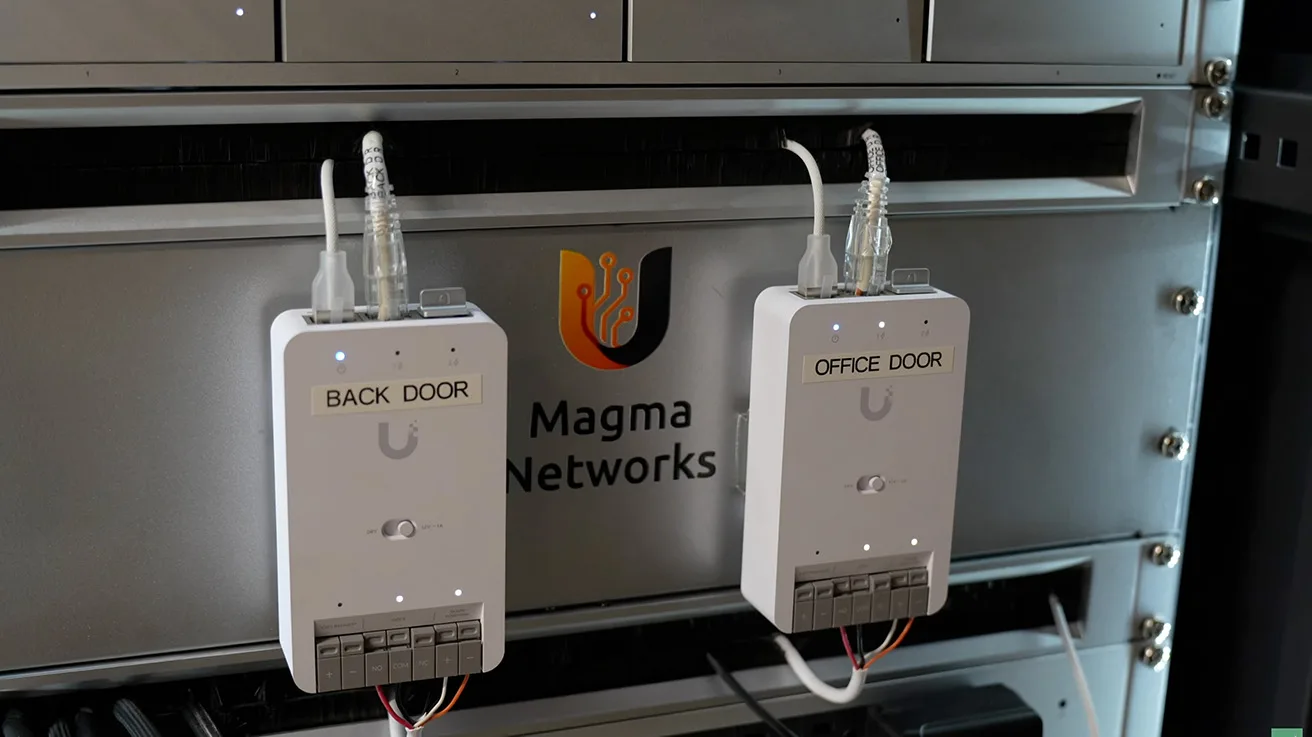
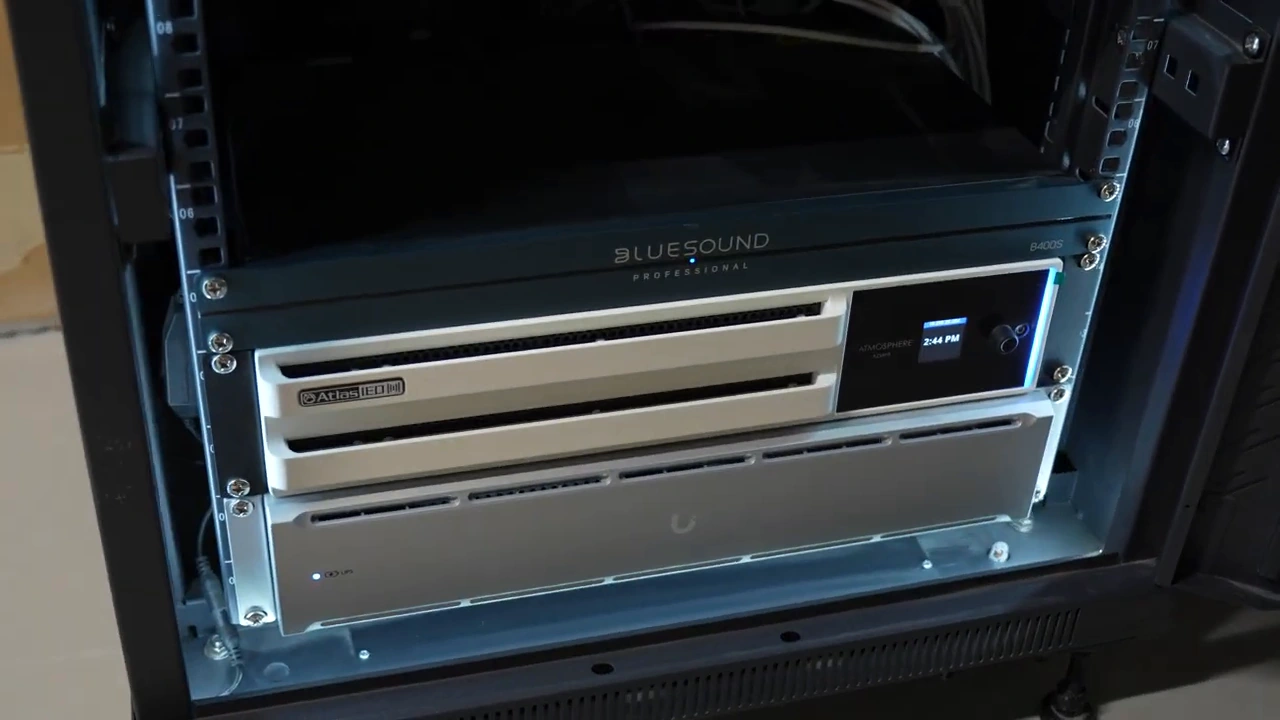
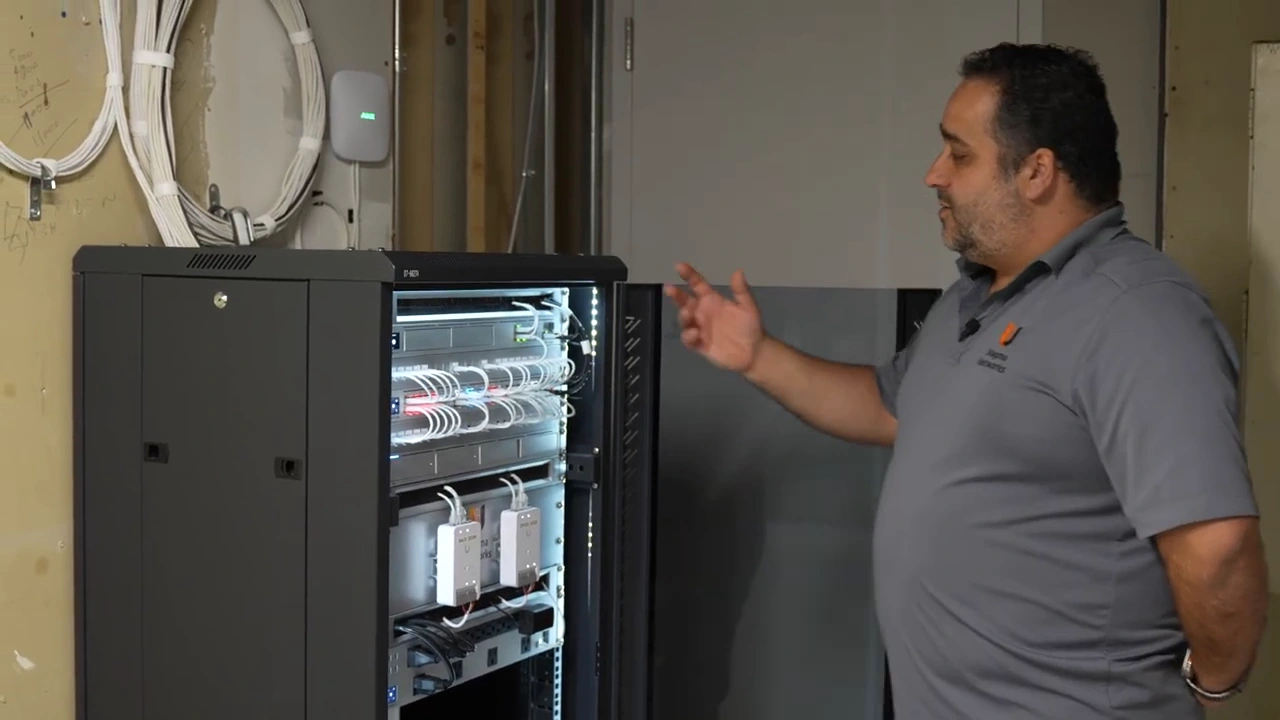
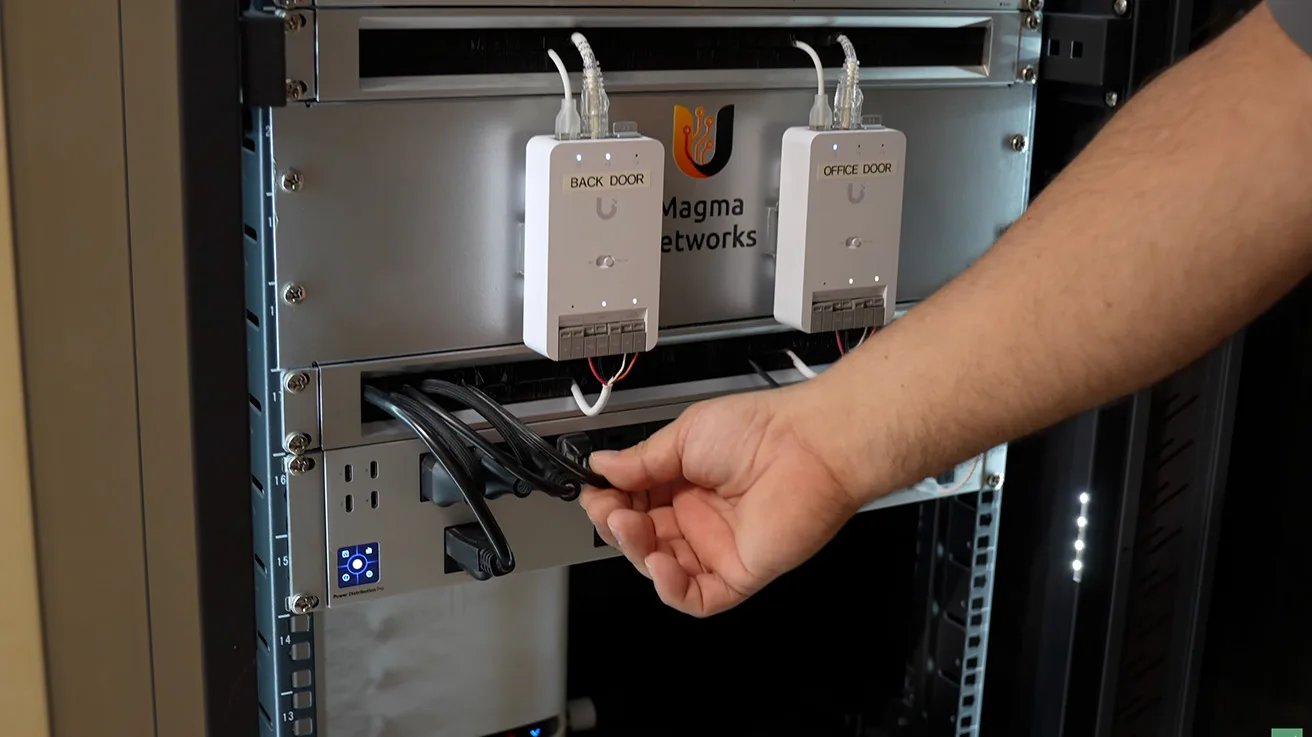
The rack brings together the gateway, switching and recording equipment; door controllers are mounted below.
1 / 5
Power distribution and backup serve different jobs. The managed PDU provides outlet control and remote power cycling; the UPS provides temporary battery backup. Ubiquiti’s power-redundancy guidance distinguishes these layers. A UPS is not a guarantee of uninterrupted operation, and no runtime test is shown here.
Helder connects the PDU, UPS management interface and Ajax hub to the gateway rather than placing all management connectivity behind the main switch. His reasoning is specific: if the switch fails while the gateway and internet connection remain available, remote management of that power equipment can still be reachable. He explicitly notes that losing the UDM would remove that remote path.
He also describes using managed power to restart the provider equipment when appropriate. At filming, there was a Bell service issue. Remote power cycling can be a recovery tool; it cannot guarantee a fix for an upstream provider fault.
Which UniFi Application Runs Where?
The PBX deployment uses the UDM Pro Max for Network and Talk, while the UNVR runs Protect and Access. The recorder is therefore more than a disk enclosure in this design. Ubiquiti documents application support in its guide to choosing a UniFi control plane.
That arrangement gives Helder a way to demonstrate video and door controls together. It does not mean every action runs in one application, nor does it make Ajax a UniFi application. Ubiquiti UniFi supplies the network, video, access and phone platforms; Ajax Systems supplies the separate alarm layer.
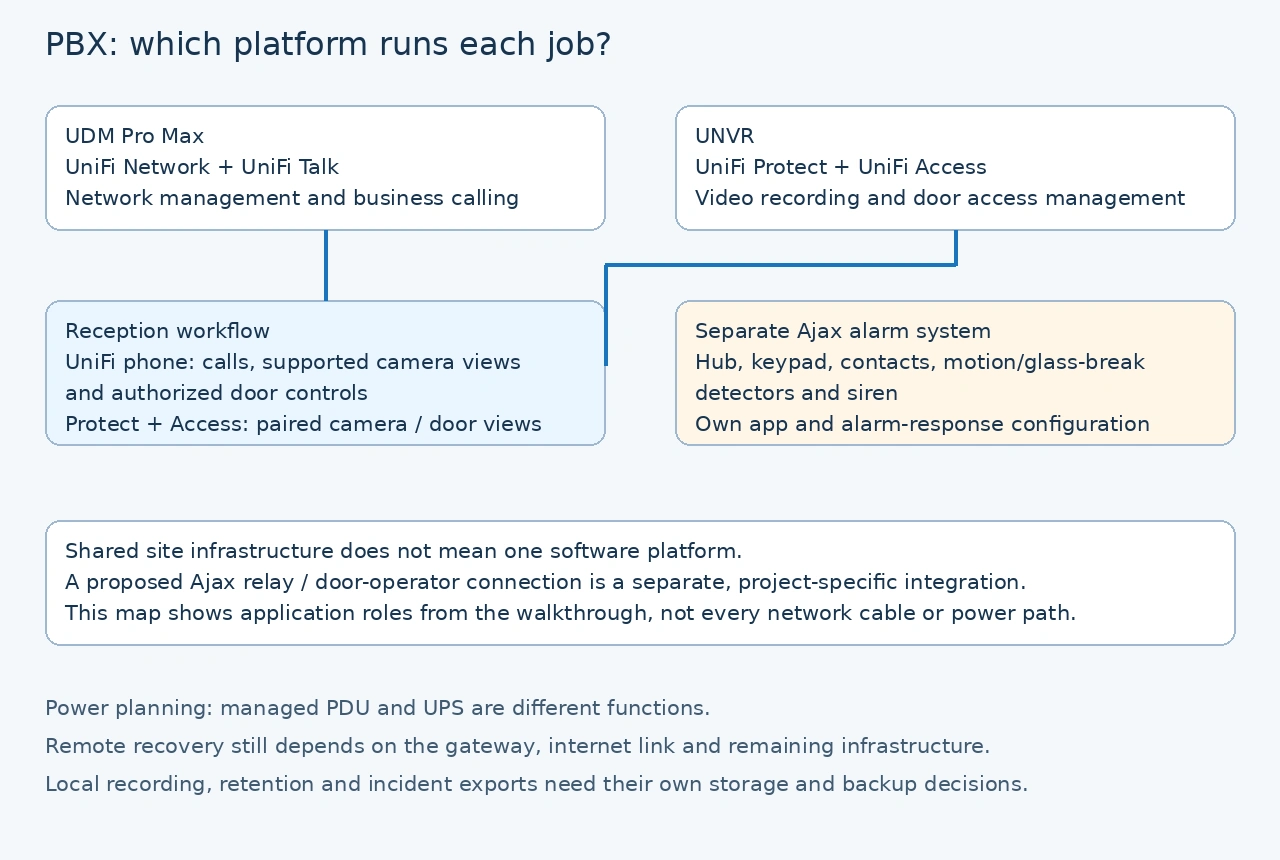
Equipment Choices in This UniFi Commercial Installation
| Equipment | Role in the project | Selection context |
|---|---|---|
| UDM Pro Max | Gateway and host for Network and Talk. | The network and phone applications are assigned here in the demonstrated deployment. Specifications |
| Pro Max 48 PoE | Main switching and PoE distribution. | Port count, PoE needs and future devices should be planned together. Specifications |
| UNVR | Host for Protect and Access, with two 16 TB drives identified by Helder. | Disk configuration and camera settings determine usable capacity and retention. Specifications |
| G6 Turret | 4K cameras used at key areas, including reception and the exterior. | The console lists six. Face and plate recognition remain dependent on scene and configuration. Specifications |
| G5 Turret Ultra | 2K cameras used in selected interior and exit areas. | The console lists four, allowing model selection to vary by location. Specifications |
| G5 Dome Ultra | 2K hallway camera visible in the Protect device inventory. | The console lists one; hallway orientation is discussed for the narrow corridor. Specifications |
| U7 Outdoor | Court-area access points using external omnidirectional antennas. | This model uses 2.4 and 5 GHz. The Outdoor name does not prevent an indoor design choice. Specifications |
| U7 Pro | Indoor Wi-Fi coverage for additional facility areas. | This model supports 2.4, 5 and 6 GHz; do not apply that band list to U7 Outdoor. Specifications |
| G3 Reader | Access credentials at controlled entrances. | Touch Pass uses compatible mobile credentials and has its own setup and commercial terms. Specifications |
The table links model names to the official US store through our affiliate links. Specifications are linked separately. It covers selected identifiable UniFi products, not every power device, door fitting or accessory on site. Check the correct region, finish, availability and project requirements before ordering.
For a broader explanation of recording hardware and PoE planning, see our UniFi Protect guide for beginners.
Reception: Calling, Camera Views and Door Controls
Reception is where the systems become useful to staff. Helder opens a camera view on the UniFi phone and demonstrates access to door-unlock controls. The same desk can handle business calls and let an authorized employee see an entrance before releasing a door.
This is a practical combination of Talk, Protect and Access, not a claim that any phone can control any door automatically. Permissions, supported equipment and the installed applications still define what each user can do.
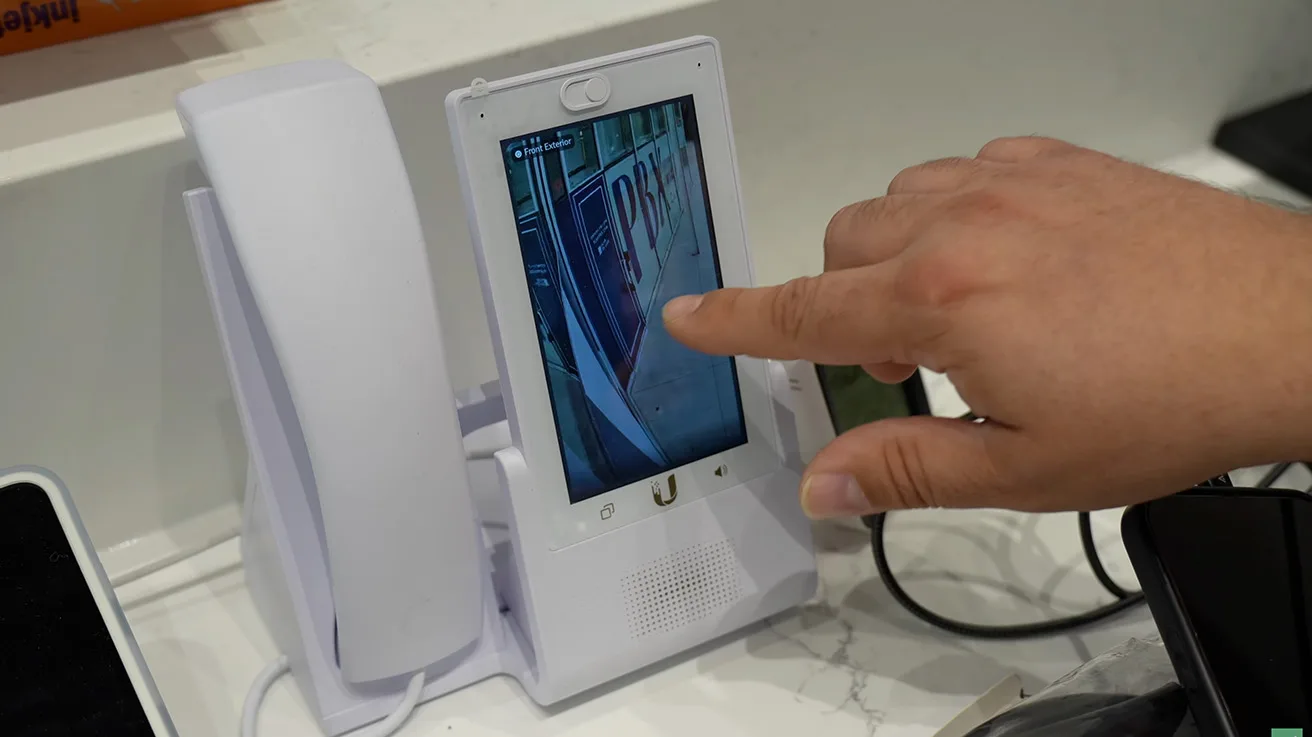
The reception G6 Turret is also one of the cameras Helder prioritizes for continuous recording. His purpose is to capture people entering the building with useful detail. Elsewhere, he selects different camera types according to the view required.
A Separate Alarm System for Intrusion Protection
Ajax provides the alarm hub, touchscreen keypad, door contacts, CombiProtect detectors and siren shown in the walkthrough. Staff use the Ajax keypad to arm and disarm the system. UniFi handles a different group of functions.
CombiProtect combines motion and acoustic glass-break detection, as described in the official Ajax manual. Helder selects it for areas with glass around the facility. DoorProtect contacts report opening at protected doors; the entry delay gives an authorized user time to disarm the configured system.
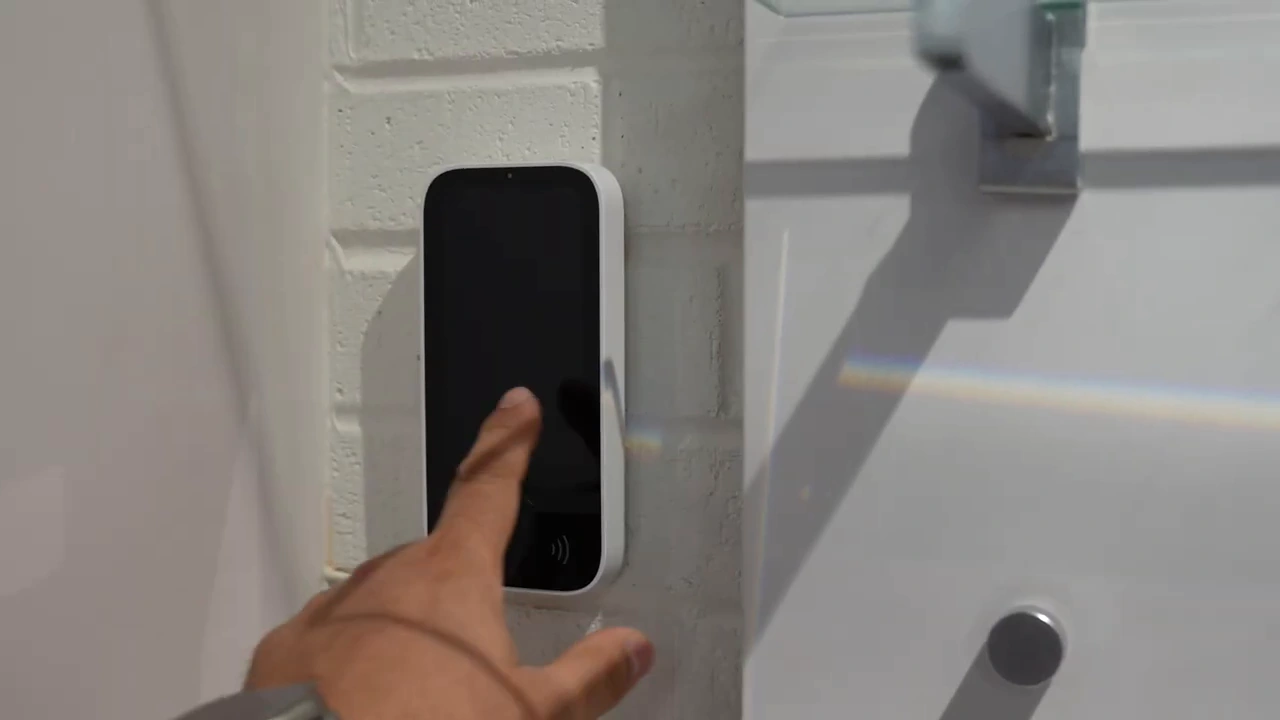
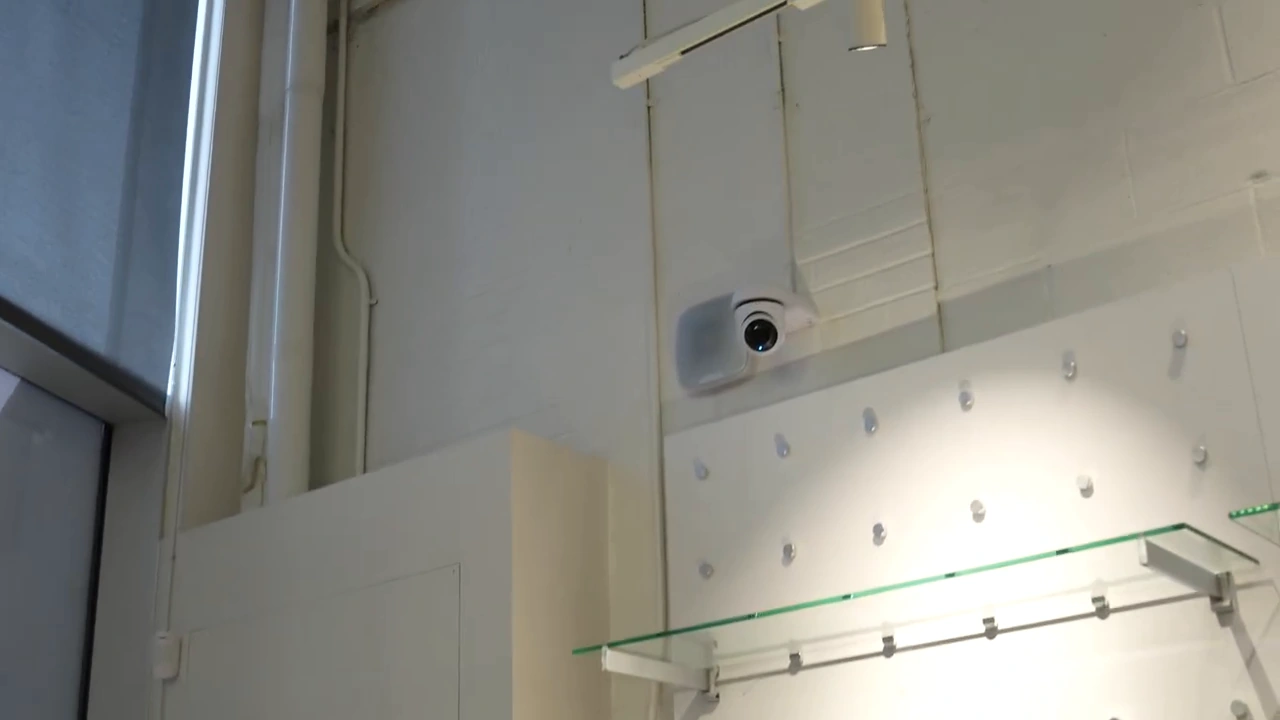
The separate Ajax alarm system provides the arming and disarming interface shown at reception.
1 / 2
An alarm can activate the configured siren and notify users. Any guard dispatch also depends on the club’s monitoring and response arrangement; it is not a service delivered by a glass-break detector alone.
At the time of the project, Helder chose Ajax for the dedicated alarm interface and device range he wanted. The two brands share the property and parts of its infrastructure. The walkthrough does not show a native UniFi-to-Ajax software integration or one combined app for all functions.
The Front Door: Authorize Entry, Then Operate the Door
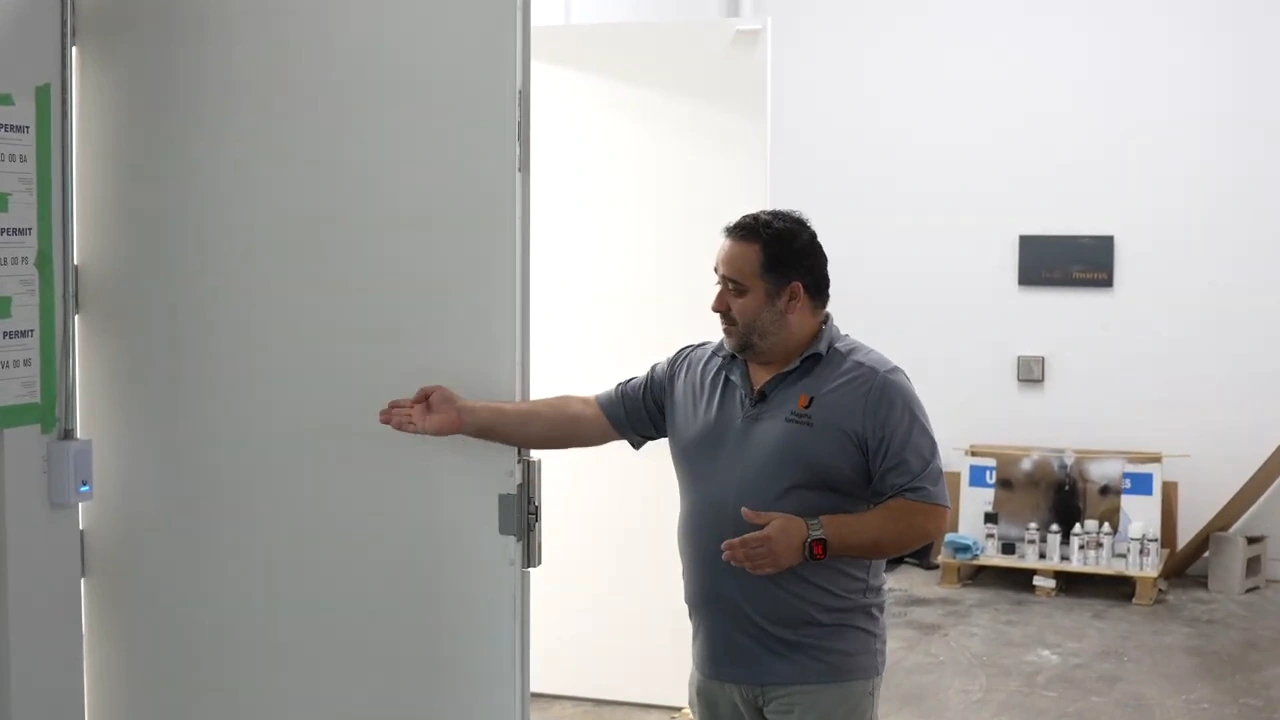
The main entrance brings together a G3 Reader, electric locking hardware, an automatic door operator and an Ajax door contact. Each has a different role: identify an authorized credential, release the lock, move the door and report its open/closed state.
Helder demonstrates why the sequence matters. The outside automatic-opening request does not drive the operator against a locked door. After an authorized unlock, he shows the opening request operating the door. That behavior is distinct from the interior request-to-exit and emergency exit hardware.
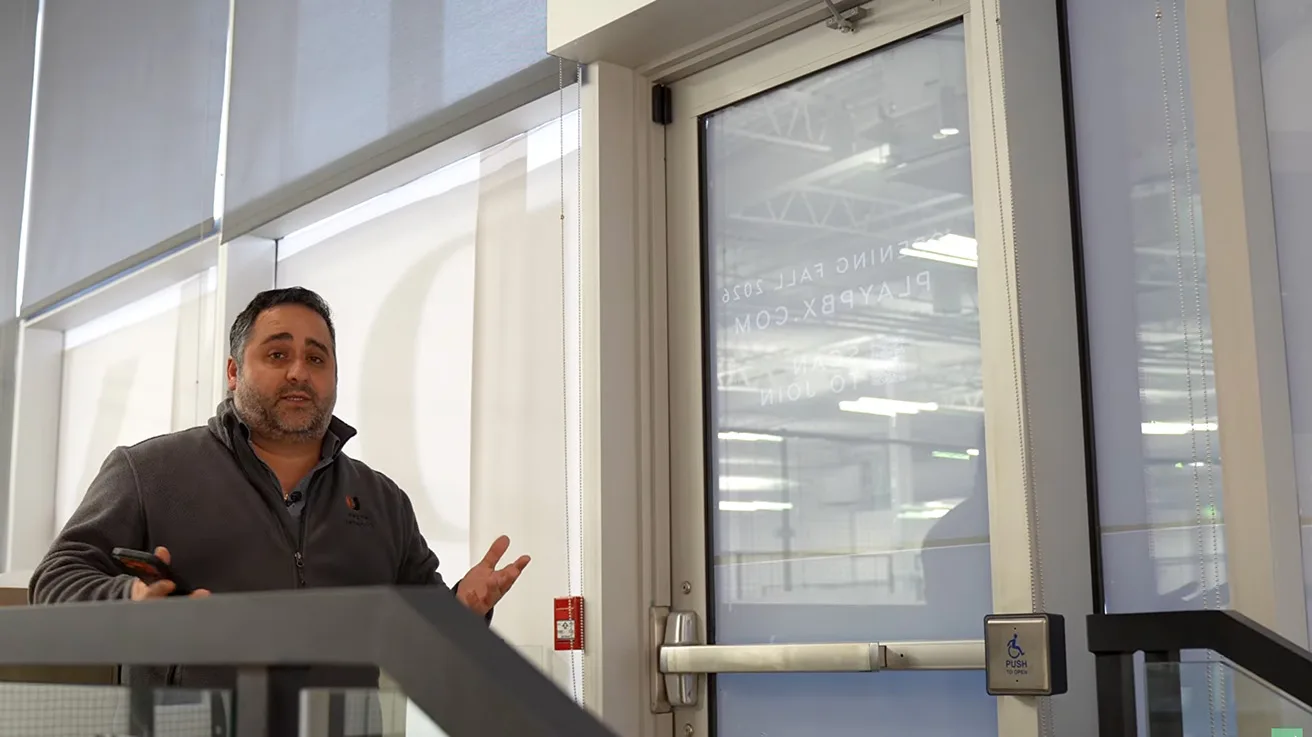
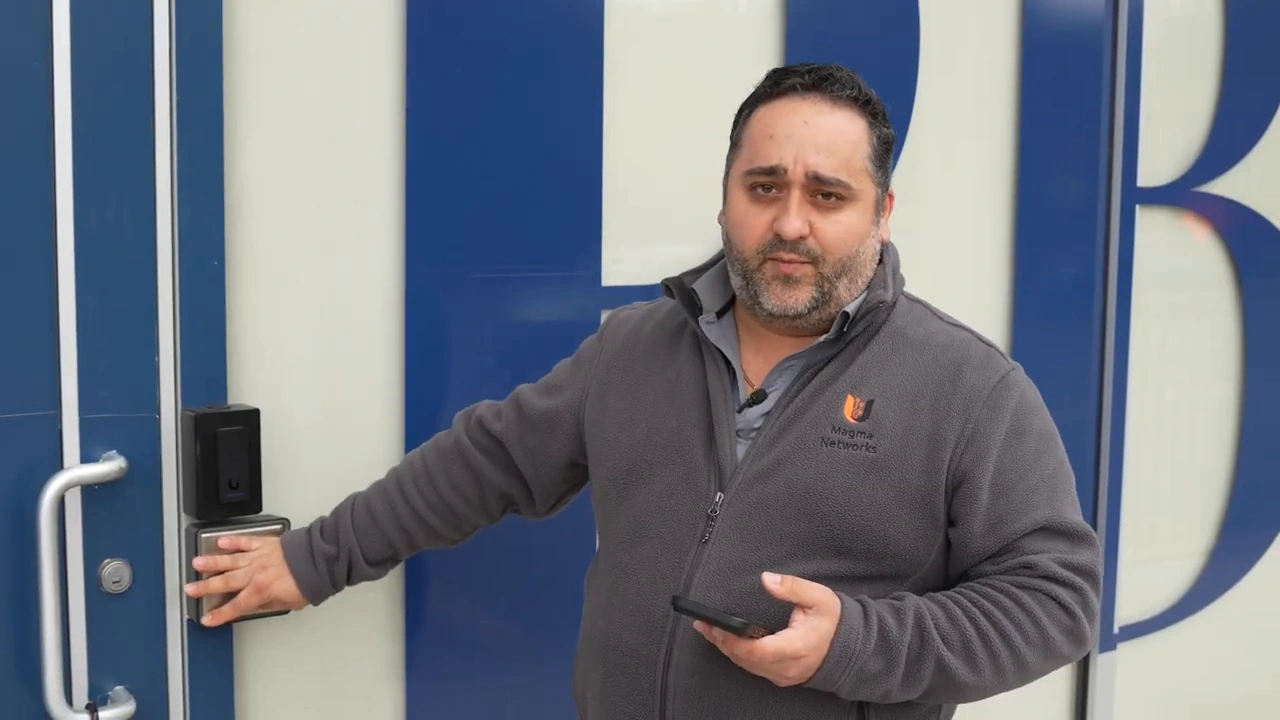
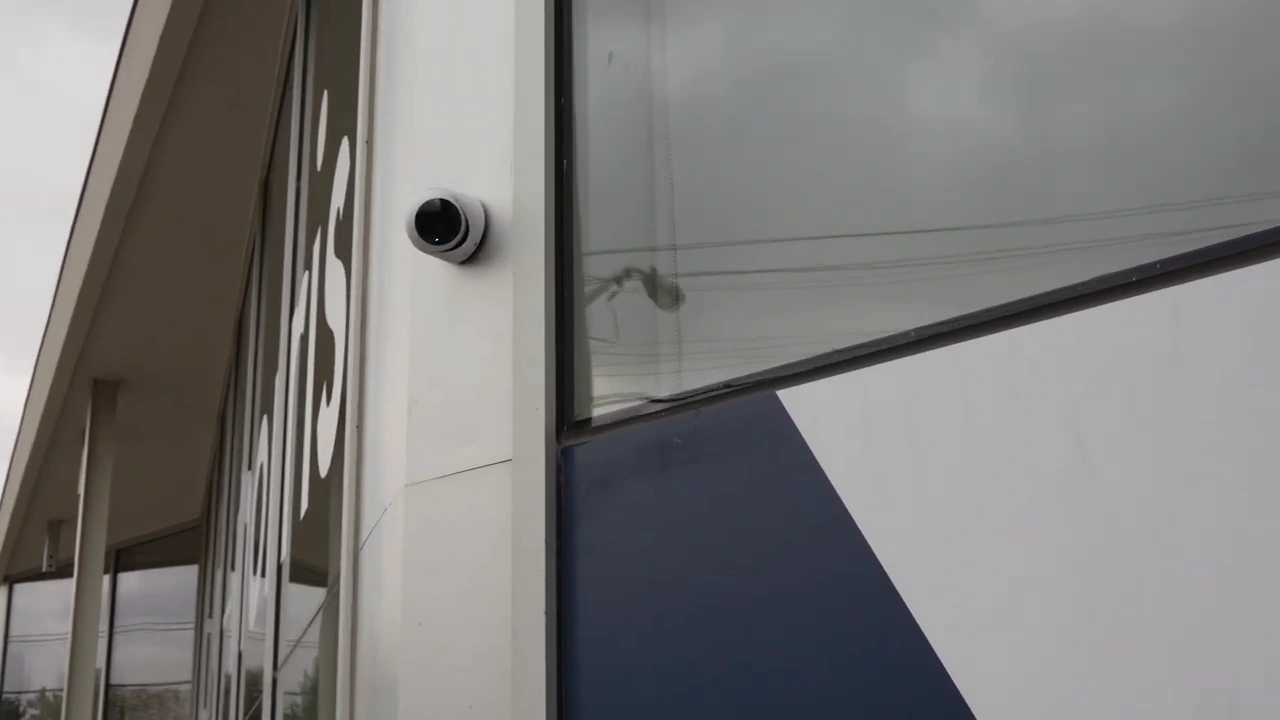
The main entrance combines authorized entry, door status monitoring and an automatic door operator.
1 / 3
For installers, the useful starting point is Ubiquiti’s door-operator integration guidance, checked against the actual operator and hub. Helder also points viewers to Magma Networks’ Downloads area for schematics; access currently requires signing in. These references support project design, not a universal wiring recipe for every entrance.
Touch Pass supports compatible mobile credentials, including the Apple-device use discussed here. Check current Touch Pass requirements and terms rather than assuming all credentials are included permanently at no cost. Our UniFi Access walkthrough explains the broader access-control workflow.
Wi-Fi and Camera Coverage Across the Club
For the courts, Helder uses U7 Outdoor access points with external omnidirectional antennas. Although the model is designed for outdoor use, its mounting and radio pattern fit this part of the indoor project. The specific model supports 2.4 and 5 GHz; the U7 Pro units used elsewhere add 6 GHz.
Mounting height is also a maintenance decision. Helder places court-area APs where technicians can reach them more easily than the high ceiling, reducing the difficulty of future work over the playing surface. In a sports facility, that can make maintenance less disruptive to court operations. That choice still needs suitable radio coverage in the actual room.
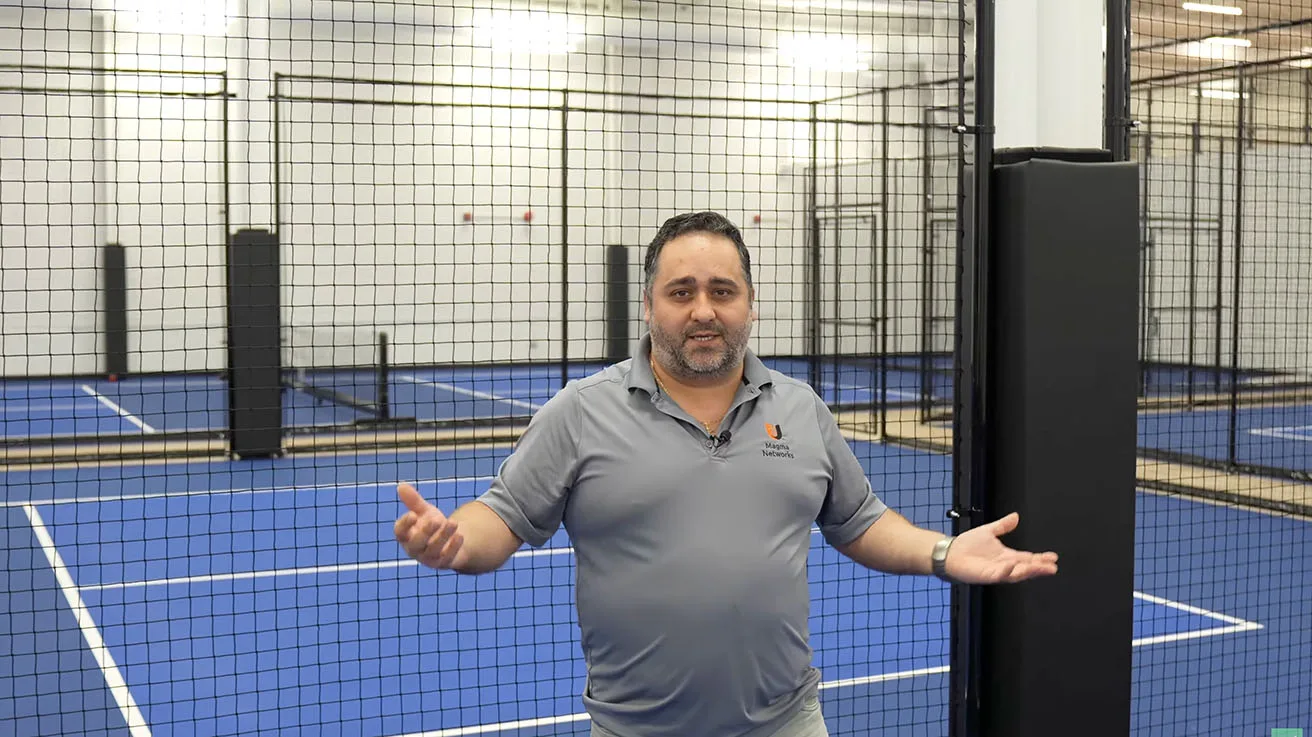
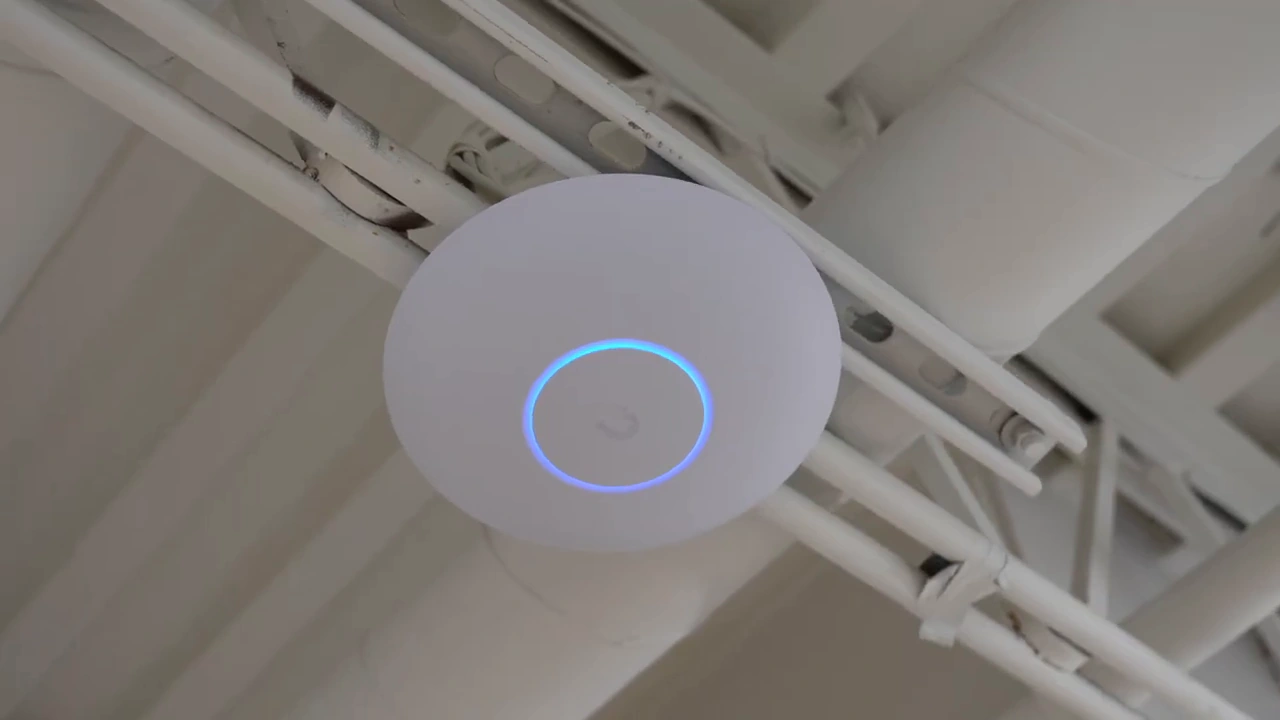
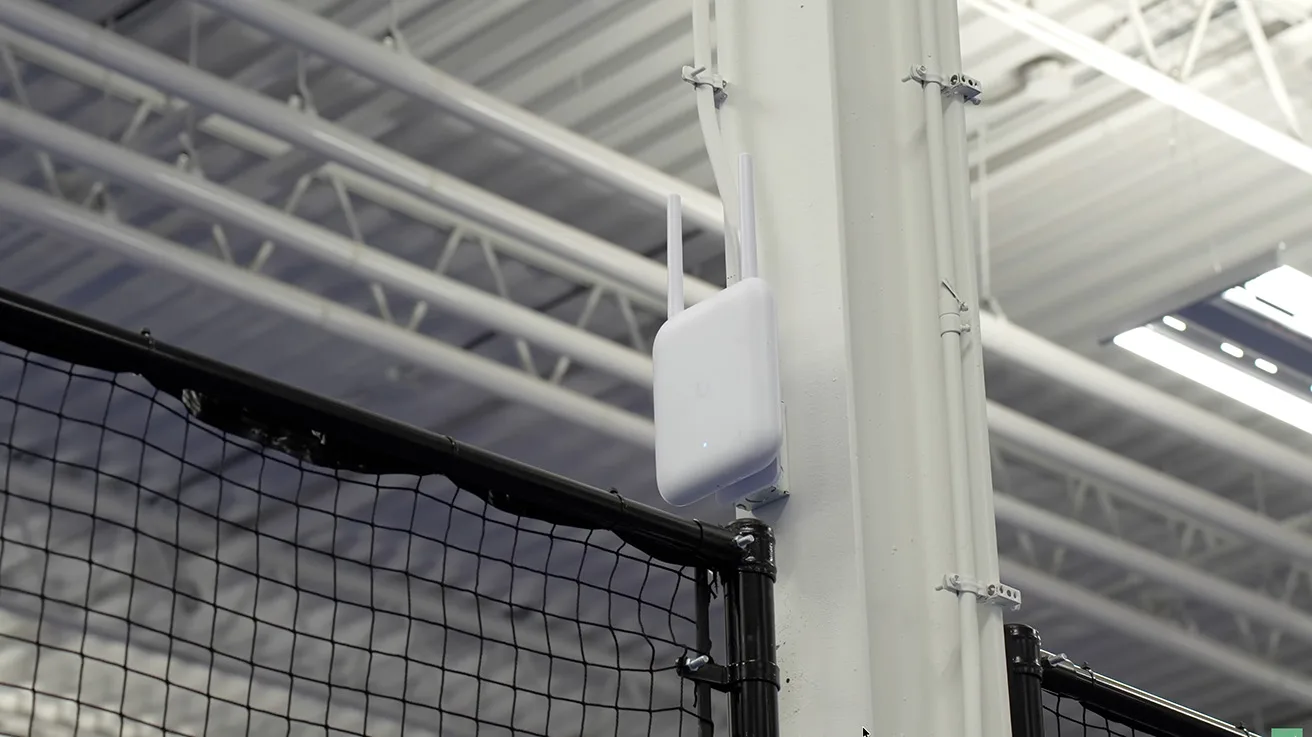
The court-area U7 Outdoor access points are mounted at a height chosen to make future service more practical.
1 / 4
He describes using UniFi Design Center to plan the wireless layout, including the mezzanine, office and other areas beyond the courts. The walkthrough does not provide an independent coverage survey or a client-load test, so the plan and the demonstrated installation should not be presented as measured performance across every seat.
The camera mix follows the same area-specific approach. The recorded Protect inventory shows six G6 Turrets, four G5 Turret Ultras and one G5 Dome Ultra. The G6 models are listed at 4K, while the five G5 cameras are listed at 2K. This on-screen inventory adds detail beyond the spoken camera summary.
The G6 Turret supports face and license plate recognition. Helder discusses face alerts at entrances and plate capture outside, rather than plate recognition on indoor courts. Helder describes using configured alerts when a previously flagged person returns. Those functions assist review and notifications; they do not guarantee identity or readable plates in every lighting, angle and distance.
Gym Changes, Back-Door Hardware and Accessible Facilities
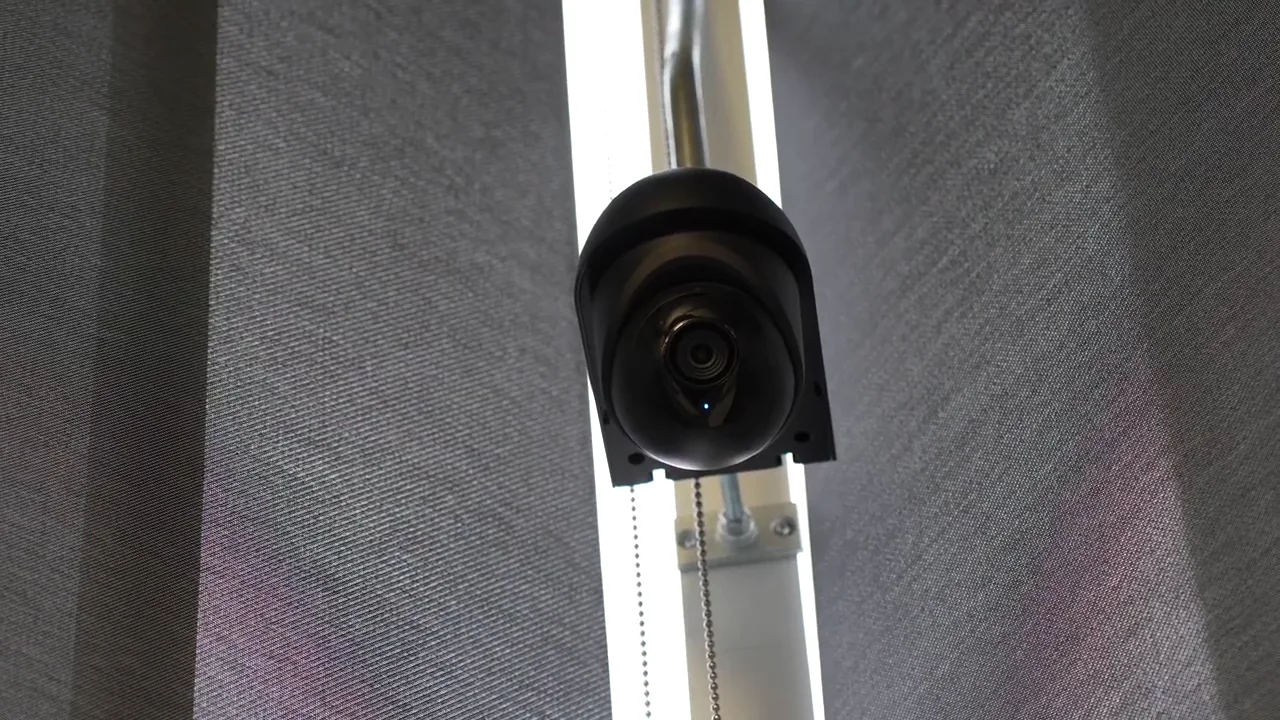
The final gym equipment layout was not available when the original camera plan was drawn. Once equipment arrived, it obstructed the intended view. Helder describes agreeing to relocate the camera before opening. At filming, that remained follow-up work, not a completed move.
The back door includes a G3 Reader, electric strike and separate Ajax DoorProtect contact. Magma Networks also supplied the push bar and outside handle requested by the general contractor. Door access therefore involved physical hardware and coordination, not just mounting a reader.
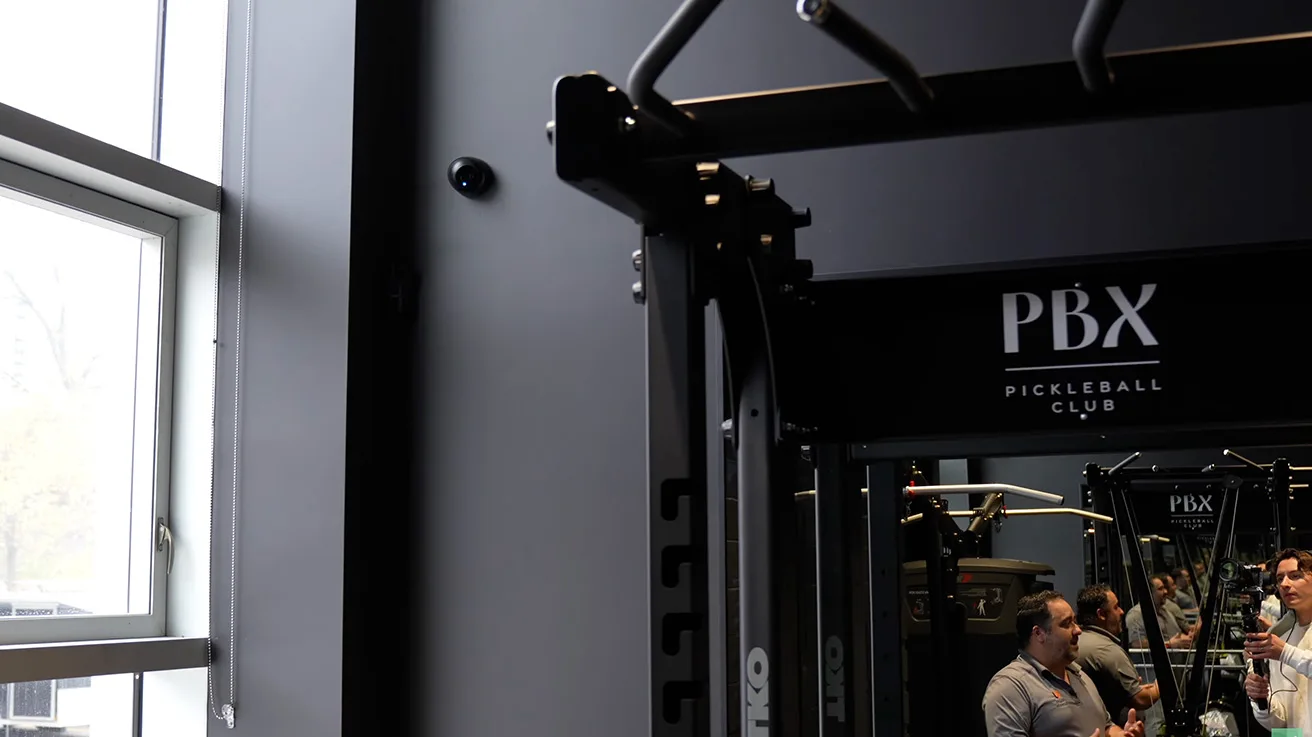
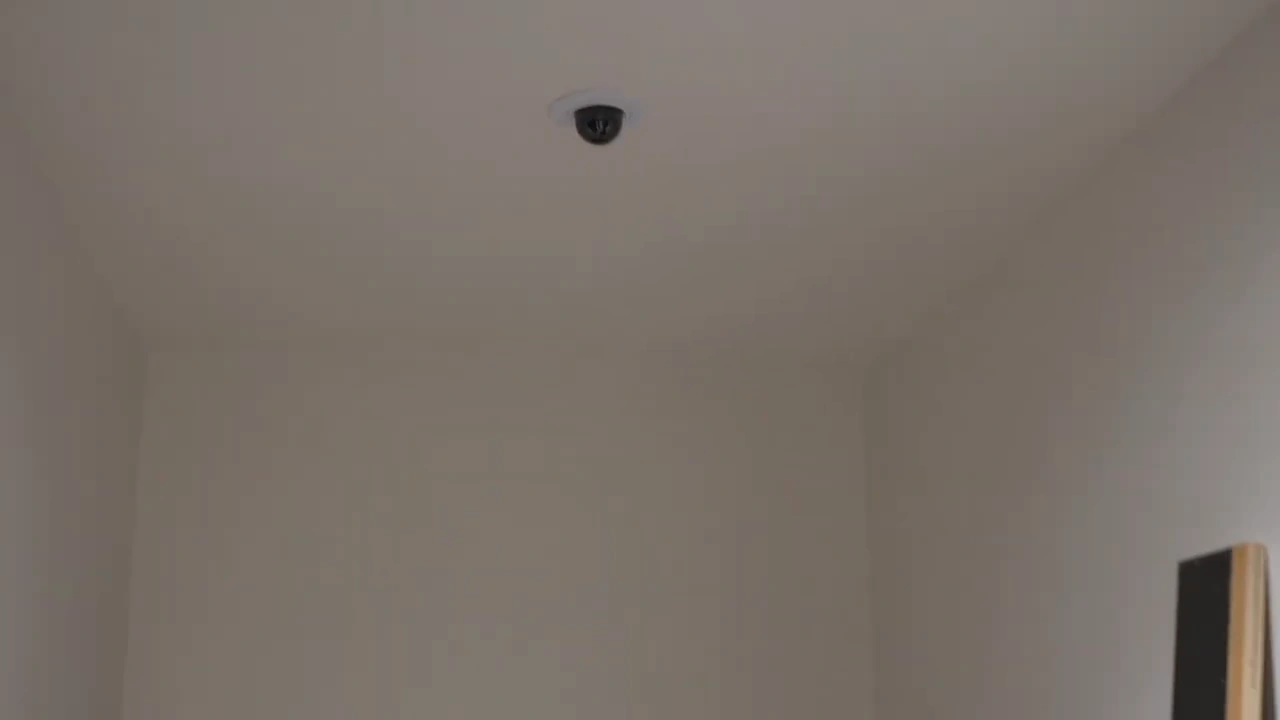
The gym equipment layout changed after the original design, creating a camera relocation task before opening.
1 / 4
In the narrow hallway, Helder uses the camera’s hallway orientation to suit the space. He explicitly states that cameras are outside the changing rooms, not inside them. An access point also serves this part of the facility.
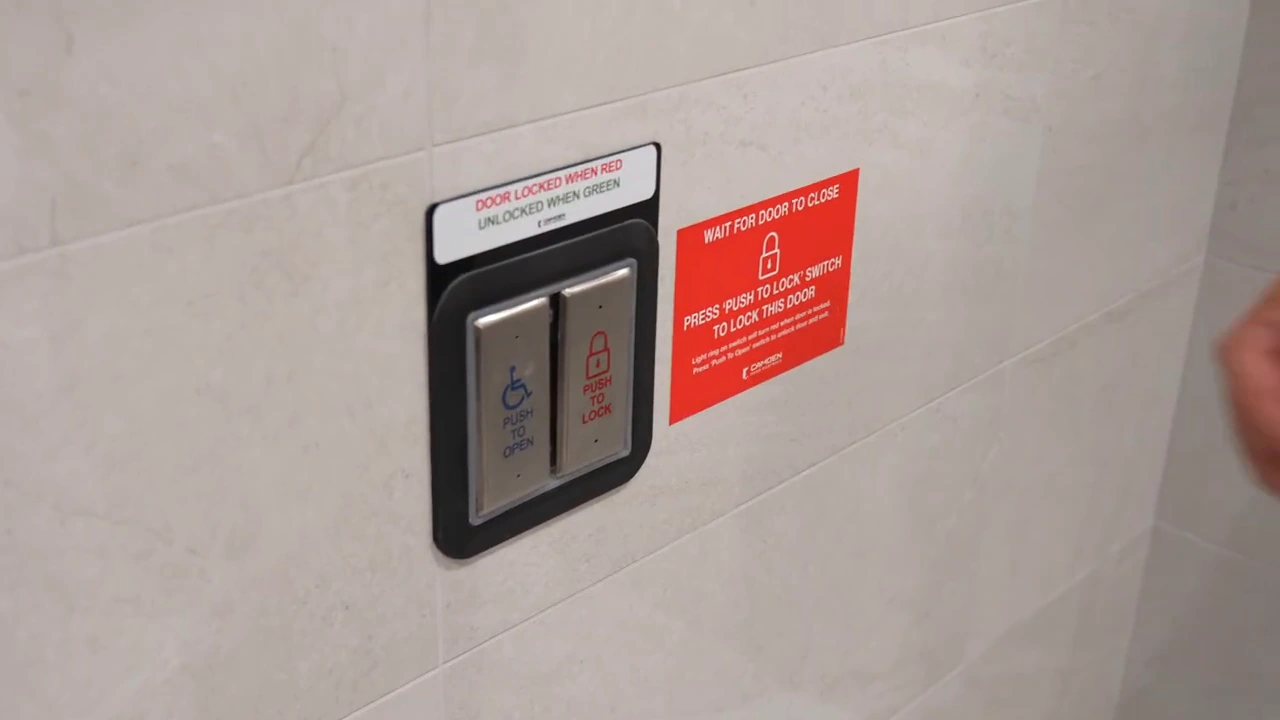
The project includes an automatic operator for the accessible washroom and a request-for-assistance arrangement. Helder describes the configured assistance request allowing staff access to help. That is the behavior described for this project; the correct response and exit behavior must be designed for the actual doorway and assistance system.
“Limit the use and viewing range of cameras as much as possible.”
Office of the Privacy Commissioner of Canada, Guidelines for Overt Video Surveillance in the Private Sector, last modified March 6, 2008.
That principle is relevant when a venue adds video, microphones and recognition functions. Define a legitimate purpose, limit views and access, and review retention and notices for the location. Audio and face-related features need their own privacy assessment; this walkthrough is not a privacy-compliance audit of the club.
Planned Additions and Staff Access Schedules
At reception, Helder lays out further Ajax devices being considered for installation. These are separate from the commissioned functions already demonstrated.
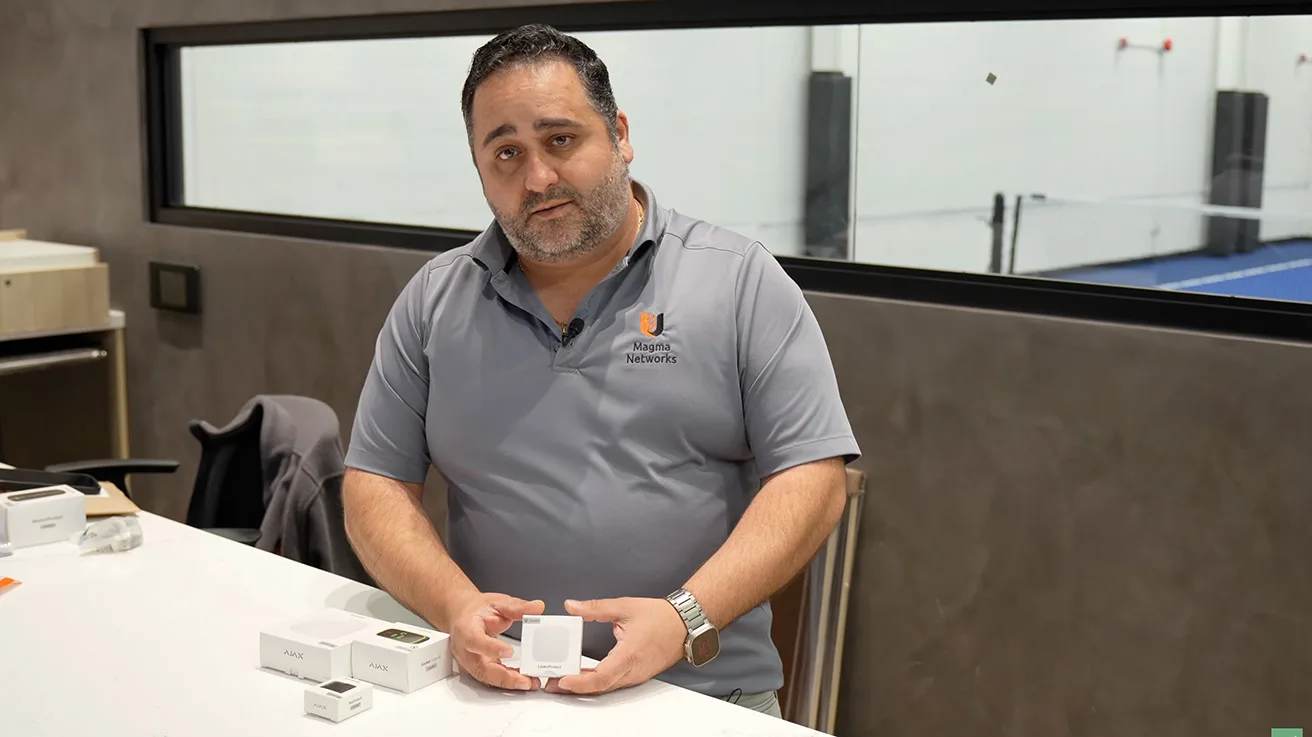
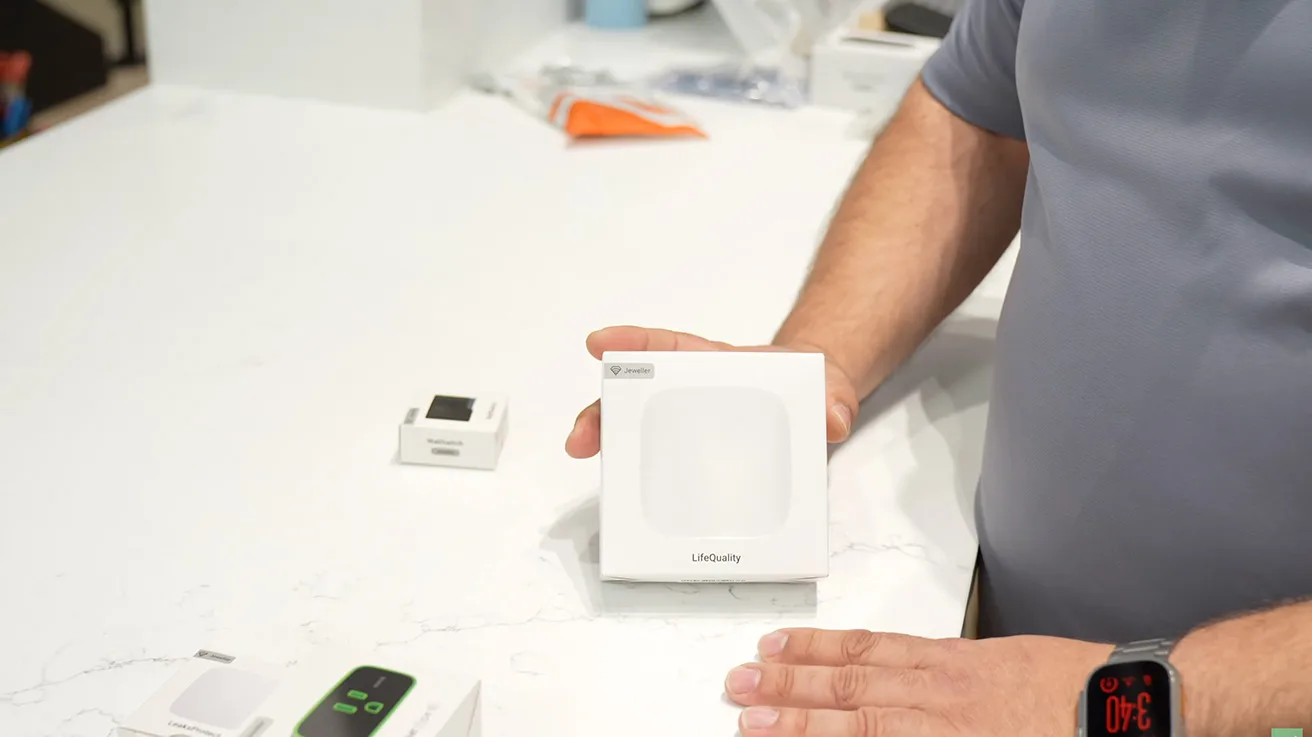
These devices are discussed as planned additions at filming, rather than confirmed commissioned upgrades.
1 / 2
| Item | Intended use | Status in the walkthrough |
|---|---|---|
| Ajax LeaksProtect | Notify the client of water at a selected location. | Planned placement, not a demonstrated leak test. |
| Ajax smart socket | Switch an illuminated opening sign on a schedule. | Proposed automation; no operating schedule is shown. |
| Ajax LifeQuality | Monitor temperature, humidity and CO₂. | Planned addition. CO₂ monitoring is distinct from carbon monoxide detection. |
| Ajax Relay | Provide a reception-button request to the automatic door operator. | Proposed project-specific relay integration, not proof of native Ajax/UniFi software integration. |
| Staff access schedules | Limit staff entry to approved periods around opening hours. | Discussed policy to configure with the client. |
| Gym camera relocation | Restore the intended view after equipment placement. | Agreed follow-up work before opening. |
The proposed staff schedule allows a defined period before opening and after closing, while management retains different access. Helder gives a half-hour or hour as an example, not a fixed rule for every venue. Contractors and other users also need access appropriate to their work.
For sports facility access control, the value is in deciding who can enter, through which doors and at what times, then keeping those permissions current. A fob or mobile credential should not automatically mean unrestricted 24/7 entry.
Software: Recording, Incident Cases and Camera-Assisted Unlocking
The console walkthrough shows how those decisions appear in daily management. Three cameras, covering the back exit, front exterior and reception, use Continuous recording. Eight others show Adaptive. Helder explains Adaptive as reducing recording quality when motion is not detected.
Those are the settings and explanation shown in the recorded version, not a guarantee of a particular storage saving. Preserve the distinction between a recording mode, image quality and a retention period.
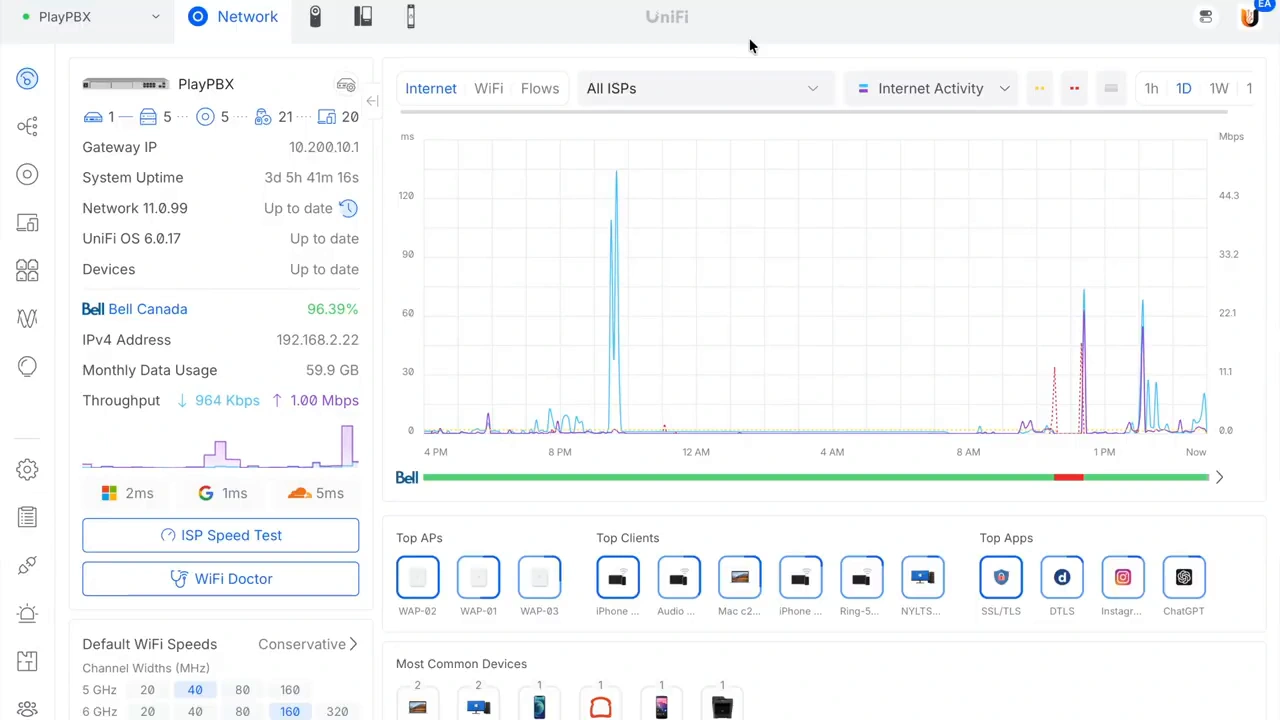
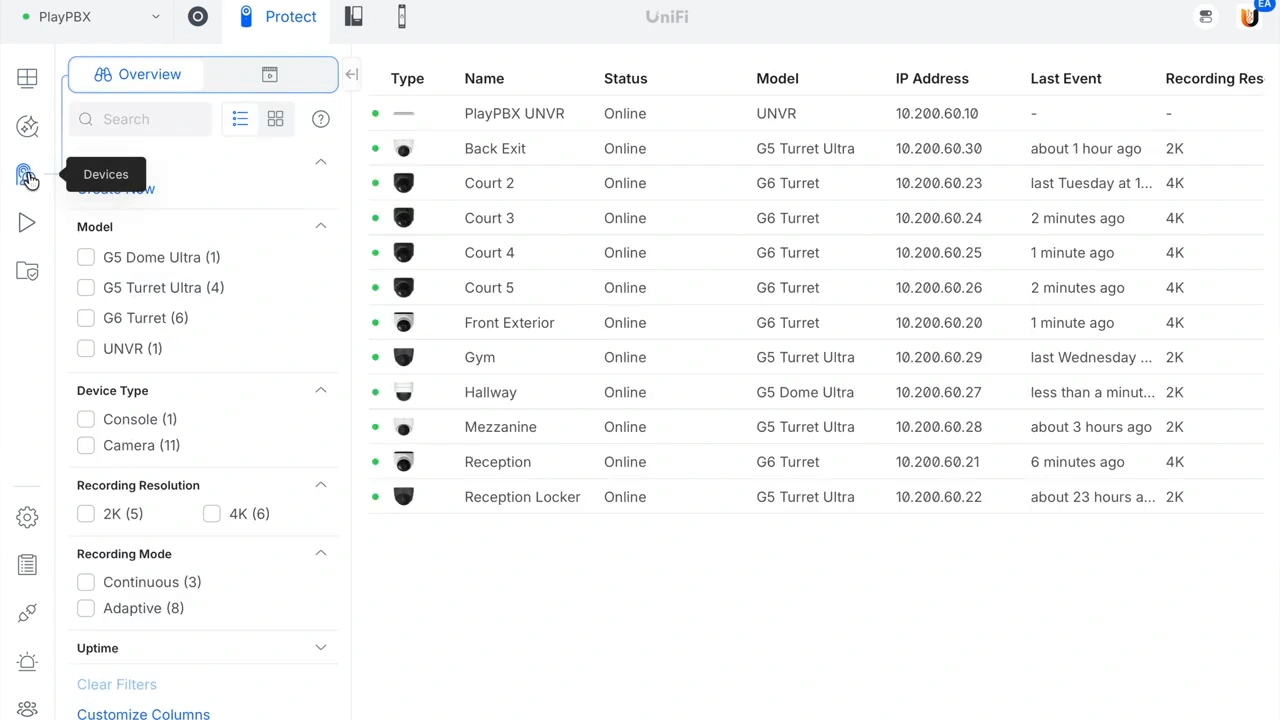
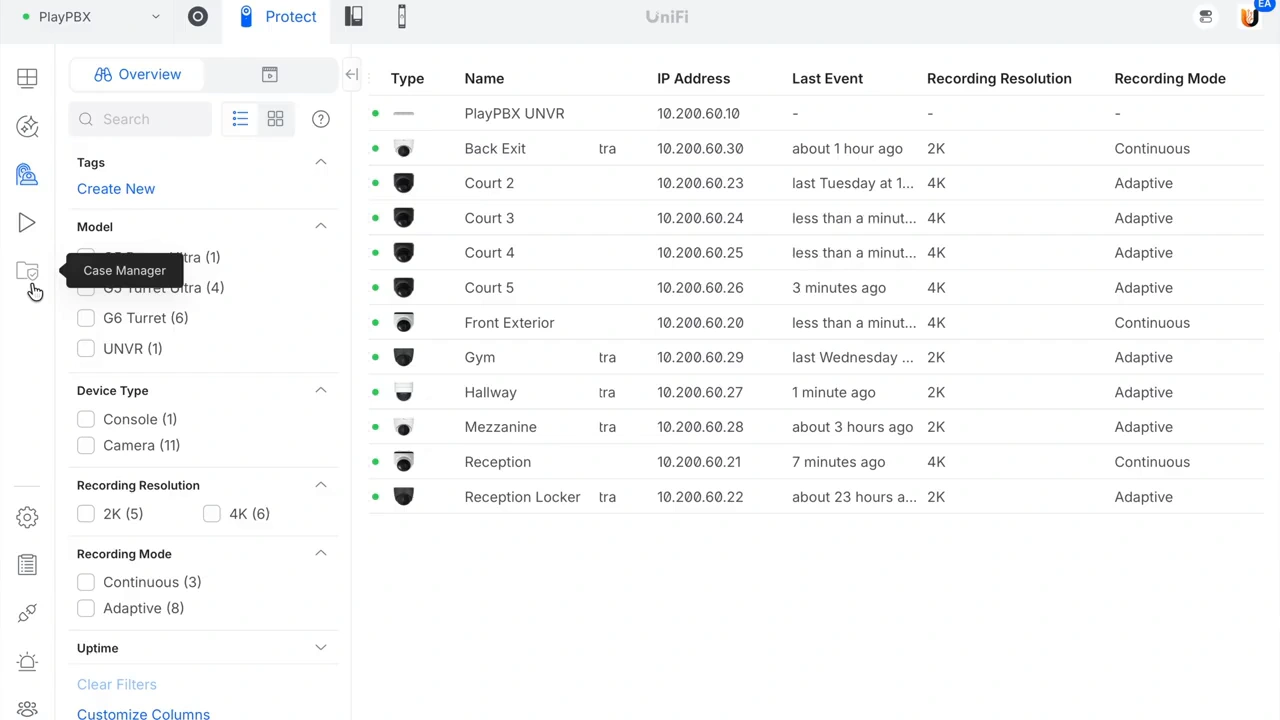
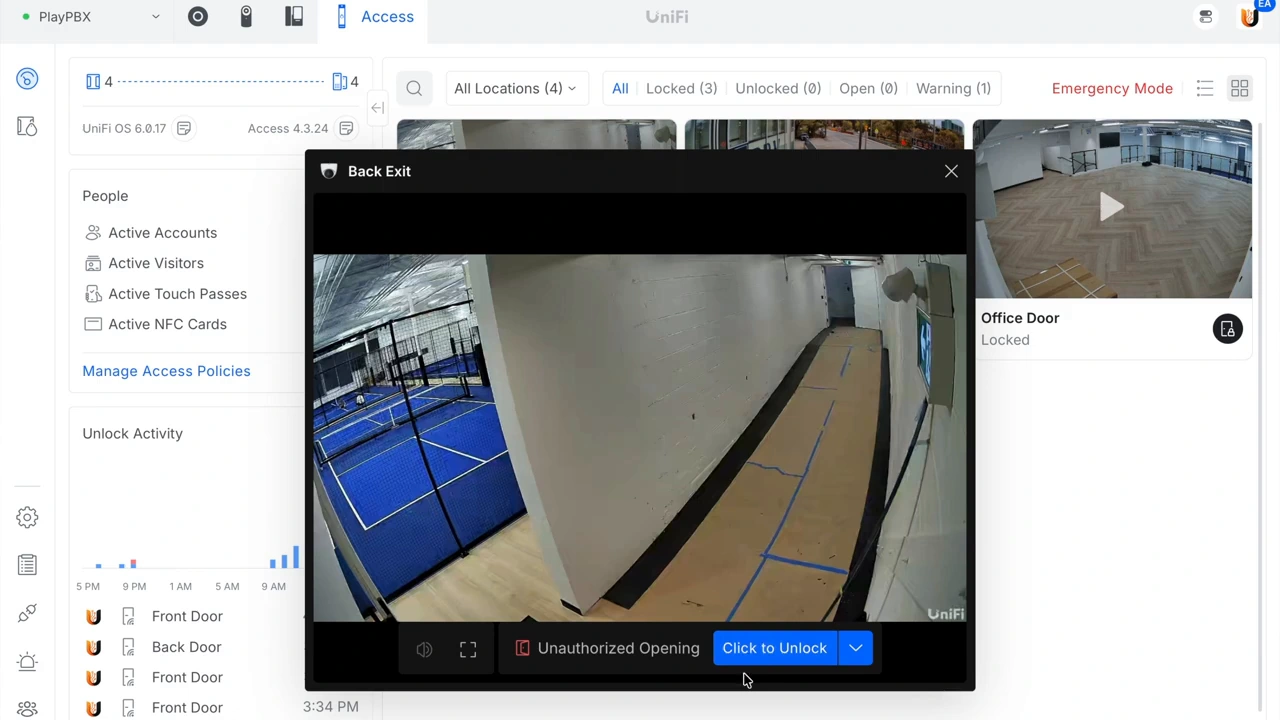
The software walkthrough shows the site’s network view alongside the other UniFi applications.
1 / 4
Case Manager lets an operator group relevant clips with notes for an incident. Ubiquiti documents preservation beyond normal recording retention and an export containing clips and a report. A saved case still occupies storage and can be removed; it is not an independent off-site backup. See the Case Manager guide for the exact workflow.
Helder then opens Access to show four controlled doors and paired camera views. The useful workflow is straightforward: an authorized person checks the relevant view and uses the unlock control. In Protect, related door shortcuts provide another way to reach that action. Video supports the decision; it is not proof that the door has mechanically closed or latched.
He also discusses sound classifications such as voices, barking and sirens, highlighting the building alarm sound as a useful notification. Offline-device alerts go to the client and Magma Networks. Audio recognition is supplemental awareness, not a certified fire-detection connection or a substitute for the building’s fire alarm and response arrangements.
The Phone System and the Real Operating Costs
UniFi Talk is the club’s business phone platform. Helder reports submitting the number-port request on November 4 and having it completed by November 13, in time for the planned opening. That nine-day result belongs to this project. Ubiquiti’s number-porting guidance makes clear that the process depends on the originating carrier and number eligibility.
Helder highlights license-free core UniFi features, but that should not be read as an installation with no recurring costs. Hardware, network management, recording, calling service, mobile credentials, alarm monitoring and support are different commercial items. UniFi Talk service subscriptions and Touch Pass terms should be reviewed separately from equipment pricing.
No total project price, monthly operating bill or verified savings calculation is supplied in the walkthrough. For a comparable proposal, ask for those costs to be itemized rather than extrapolating them from the rack.
Coordination and Support Are Part of the Installation
Work expanded as other trades saw the network taking shape. The electrical contractor asked Magma Networks to run, terminate, test and label Cat6 for smart lighting controls. The team also helped install and program PoE clocks so users could see the time across the club.
This sports facility network installation was designed to support more than cameras and access points. Helder describes a wider network plan covering guest Wi-Fi, corporate connectivity, IoT and audiovisual systems. Different network groups and labeled cables help organization; the walkthrough does not show enough configuration to establish every isolation rule or firewall policy.
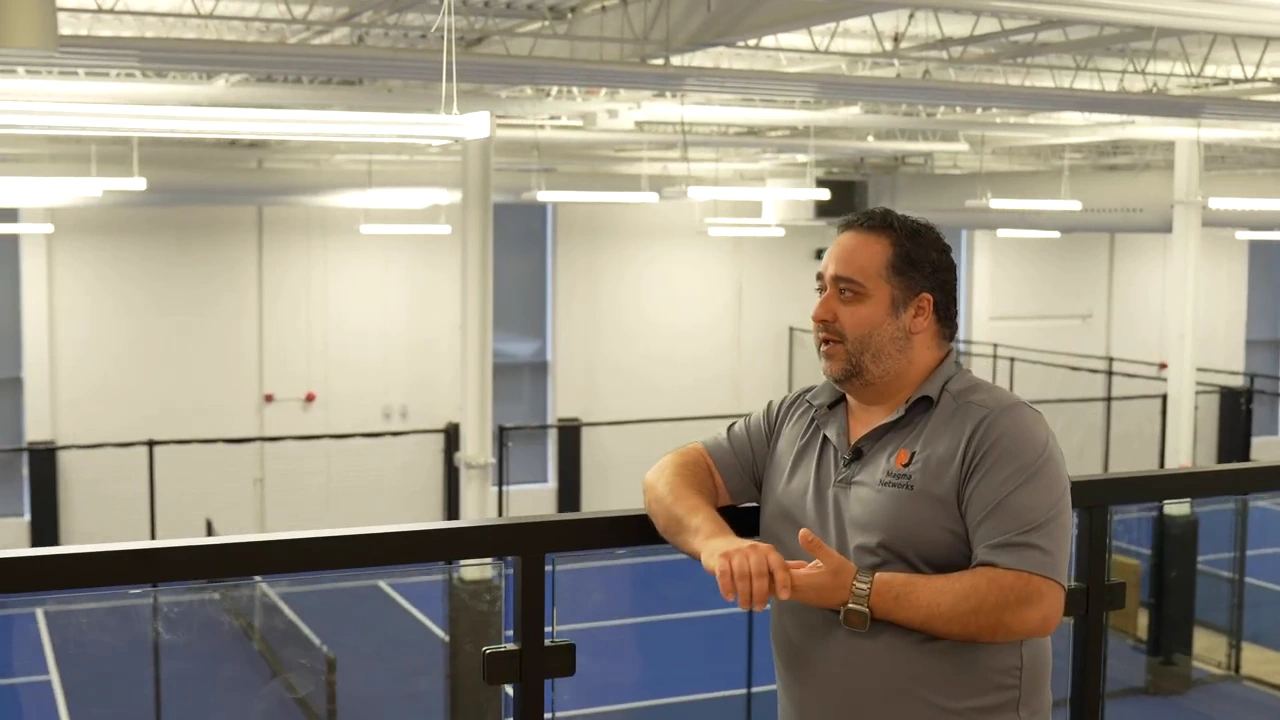
“It’s not only about installing equipment. It’s about creating the whole network and managing it.”
Helder Luis, PBX walkthrough, 26:21.
Magma Networks has a one-year service agreement for this project. Helder describes receiving device notifications so the team can investigate and support the client. The agreement’s response times, exclusions and renewal terms are not shown, so they should not be replaced with assumed service guarantees.
That continuity matters when layouts change, devices go offline or a new staff member needs access. For another example of the team’s work, see our Magma Networks UniFi Protect project at a Toronto pet boutique.
What the Owner Valued and What Other Businesses Can Learn
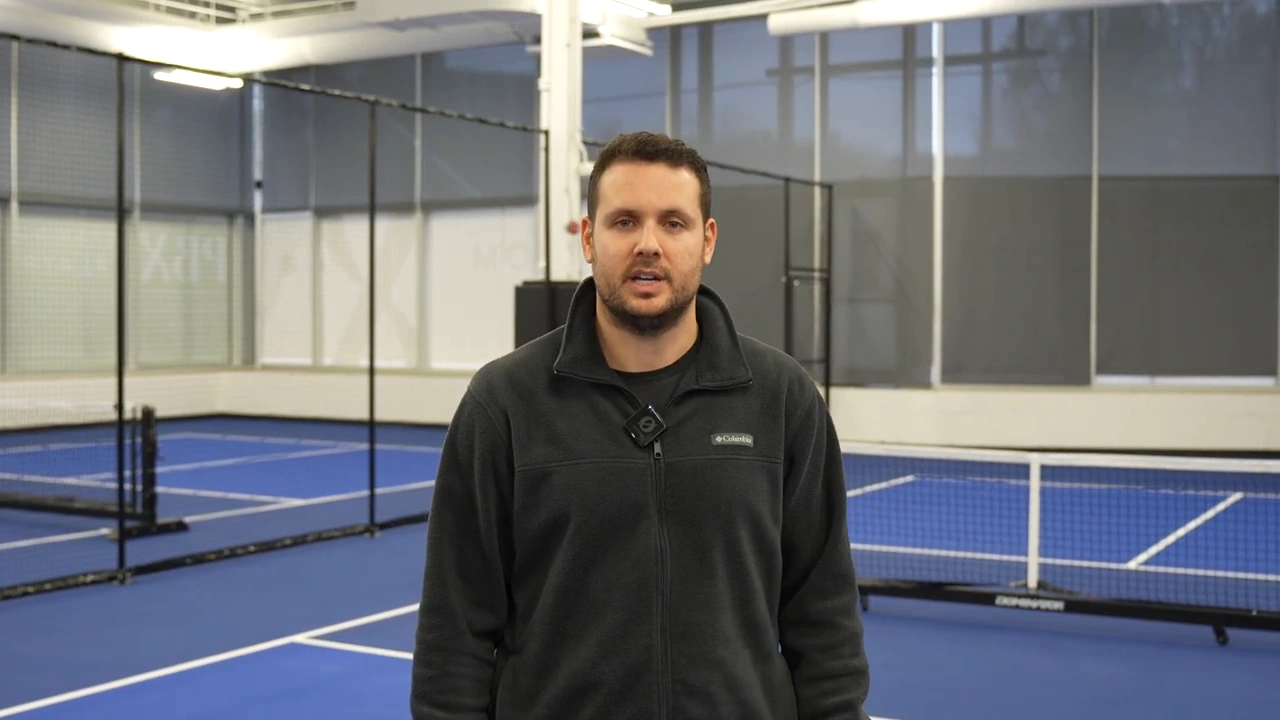
PBX owner Dexter describes wanting strong cameras, security, networking and access, but his feedback also focuses on the explanation behind the equipment. Helder walked him through the hardware and software so he understood what he was buying.
“Helder helped me understand the capabilities of the system”
Dexter, PBX owner interview, 26:56.
That is a customer account from this project, not a controlled measure of business outcomes. For businesses evaluating sports facility security systems, the practical lesson is to understand what staff will do with each system, which functions remain separate and who will provide support after installation.
| Decision | Ask your integrator |
|---|---|
| Operations | What should reception, managers, staff and contractors each be able to do? |
| Coverage | Which views and wireless areas matter, and how will the finished layout be checked? |
| Doors | How will credentials, locks, operators, exit hardware and assistance requests work together? |
| Evidence | Which cameras record continuously, what is retained, and how are incidents exported and backed up? |
| Outages | What survives a switch failure, a gateway failure, lost internet or lost utility power? |
| Ownership and support | Who controls the accounts, documents the configuration, handles alerts and supports changes? |
The transferable lesson is to design around operations and dependencies, then verify the finished installation. PBX uses a full group of UniFi applications, but its alarm remains separate, its physical doors require careful coordination, and its support arrangement is part of the project.
Questions About Commercial UniFi Installations
Can UniFi manage networking, cameras, door access and business phones?
Yes, with the appropriate equipment and applications. PBX uses Network and Talk on a UDM Pro Max, and Protect and Access on a UNVR. Application and device compatibility must be checked for the intended deployment.
Is the Ajax alarm integrated into the UniFi software at PBX?
The walkthrough shows Ajax as a separate alarm system. A proposed Ajax relay connection to a door operator is a specific hardware-control task, not evidence that Ajax devices are managed inside UniFi.
Does every U7 access point provide 6 GHz Wi-Fi?
No. The U7 Outdoor in this project uses 2.4 and 5 GHz, while U7 Pro supports 2.4, 5 and 6 GHz. Choose the specific model, antenna arrangement and placement for the intended area.
How much video retention do the two 16 TB drives provide?
The video does not establish a retention period. Usable capacity, protection settings, camera count, bitrate and recording modes all matter. Ask for a storage calculation and verify the result after commissioning.
Does the installation have no recurring costs?
Do not assume that. Calling service, Touch Pass credentials, alarm monitoring and ongoing support can have separate charges or terms. The walkthrough does not disclose a complete operating budget.
Can an integrator provide support after installation?
Magma Networks describes a one-year service agreement for PBX. For your own project, confirm monitoring responsibilities, response expectations, maintenance, documentation, account ownership and exclusions in the proposal.
Planning a Similar Project or Documenting Your Own?
For a Toronto-area project, you can discuss the requirements with Magma Networks. Alternatively, visit the Magma Networks profile on Pipl Systems and use its project inquiry option to share your location, facility type, required systems and timeline. Providing these details upfront gives the team a clearer starting point and saves time during the initial discussion.
If you need help defining the project or finding suitable independent professionals elsewhere, Pipl Systems can help you work through the options. You can also describe your project using the integrator request form below. Your selected integrator performs the installation.
Show How Your Technology Works on a Real Site
Pipl Systems documents security and networking projects with the people who design, install and use them. If you represent a brand or integration company, explore our case study video production and technical content collaborations for manufacturers.
The video closes with Helder’s plans for UniFi World Conference Miami. The official event listing shows January 12, 2027. Check current event details rather than relying on the recording’s invitation.