
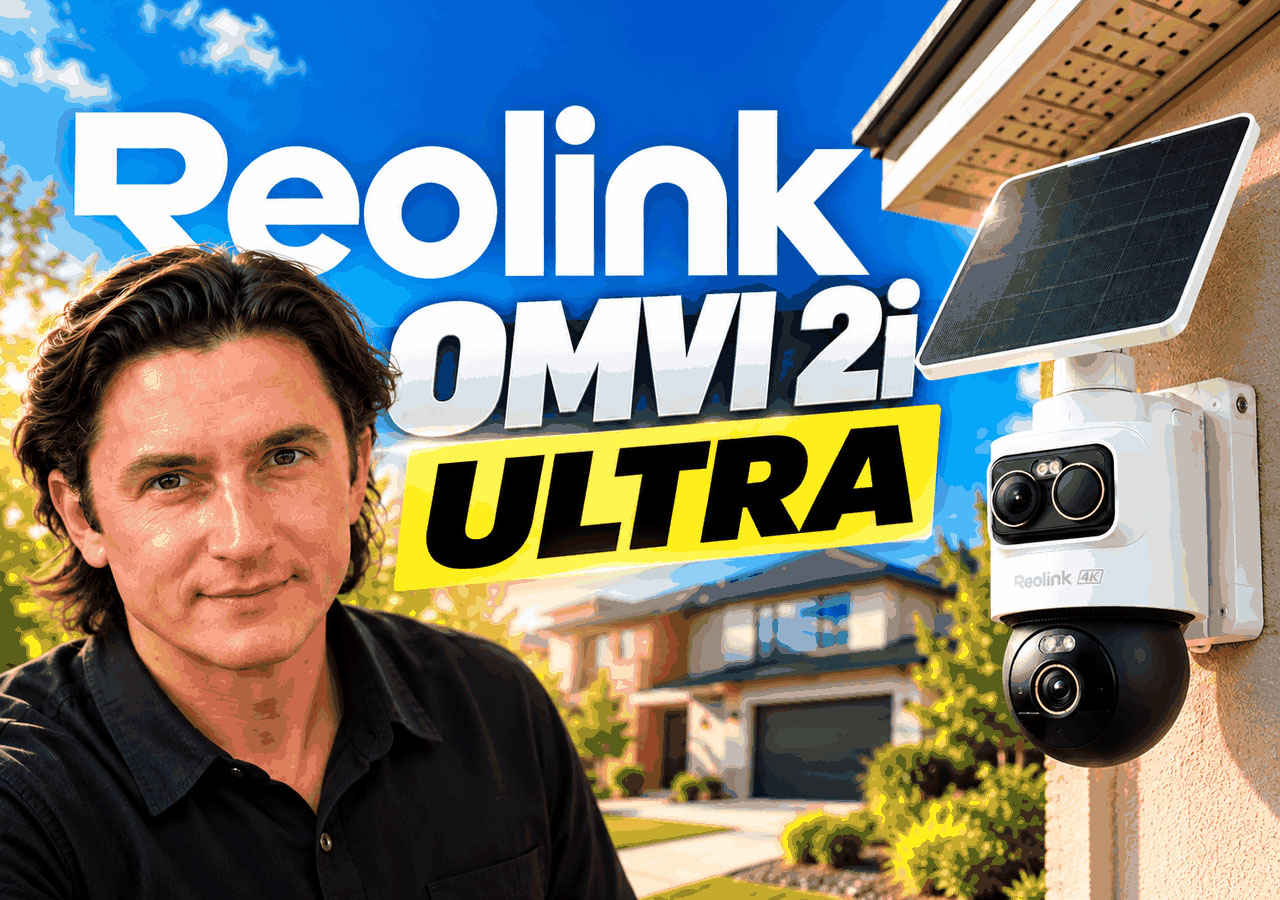
Sponsored by Reolink. Reolink provided the equipment and supported this project. This article contains affiliate links; we may earn a commission at no additional cost to you.
A camera can follow a person and still miss what happens elsewhere in the driveway. For this Reolink OMVI 2i Ultra review, I wanted to see whether two coordinated views could solve that problem at a real home: a 4K overview that stays on the scene and a separate 3K camera that turns toward activity.
We installed the camera at a home in Milton, Ontario, and tested person and vehicle tracking, manual aiming, daytime footage and night video. I also looked at the practical requirements behind a wire-free installation: Wi-Fi, solar-panel placement and local recording.
Review scope: one residential installation using home Wi-Fi and microSD event recording. Our recorded demonstrations cover person and vehicle tracking, Pinpoint, day and night footage, lights and audio. Manufacturer endurance estimates are separate from these hands-on observations.
The main takeaway: the dual-view design is useful when you need both context and a closer view of movement. It still requires a coverage plan, and its motion-triggered recording is an important distinction if you need a continuous video record.
Video chapters · 14:37
Installation: Filling a Real Driveway Coverage Gap
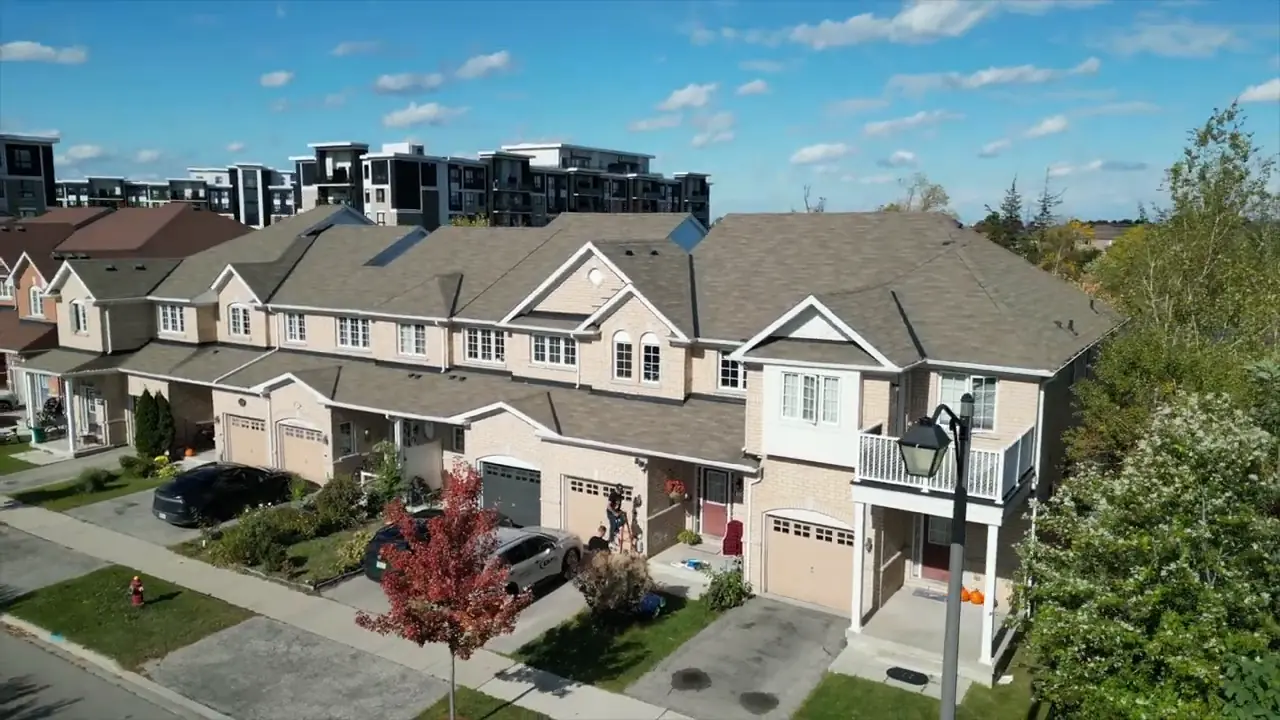
The homeowner already used a Reolink video doorbell and an Argus 3 Pro near the entrance. We kept those devices. The new camera had a different job: covering the driveway and front-yard activity beyond the existing entrance view.
Bond Securcom installed the camera, while I explored its features and tested its performance at the property. A wire-free camera can suit a DIY project, but this homeowner preferred a professional installation. The useful work starts before you drill: check the approach routes, choose the mounting height and confirm that the camera can connect to Wi-Fi at that exact location.
The installation took about 30 minutes on this property. We did not run a new Ethernet cable or a mains-power feed. That is a result from this job, not a promised installation time for every house.
We mounted the solar panel near the camera. You can position the panel separately when the best camera angle sits in shade; the best view of the driveway and the best exposure to sunlight are not always in the same place. We then added the camera to the homeowner’s existing Reolink App and set up microSD recording.
If you plan to hire help, our guide to choosing a security integrator explains what to check before commissioning the work.
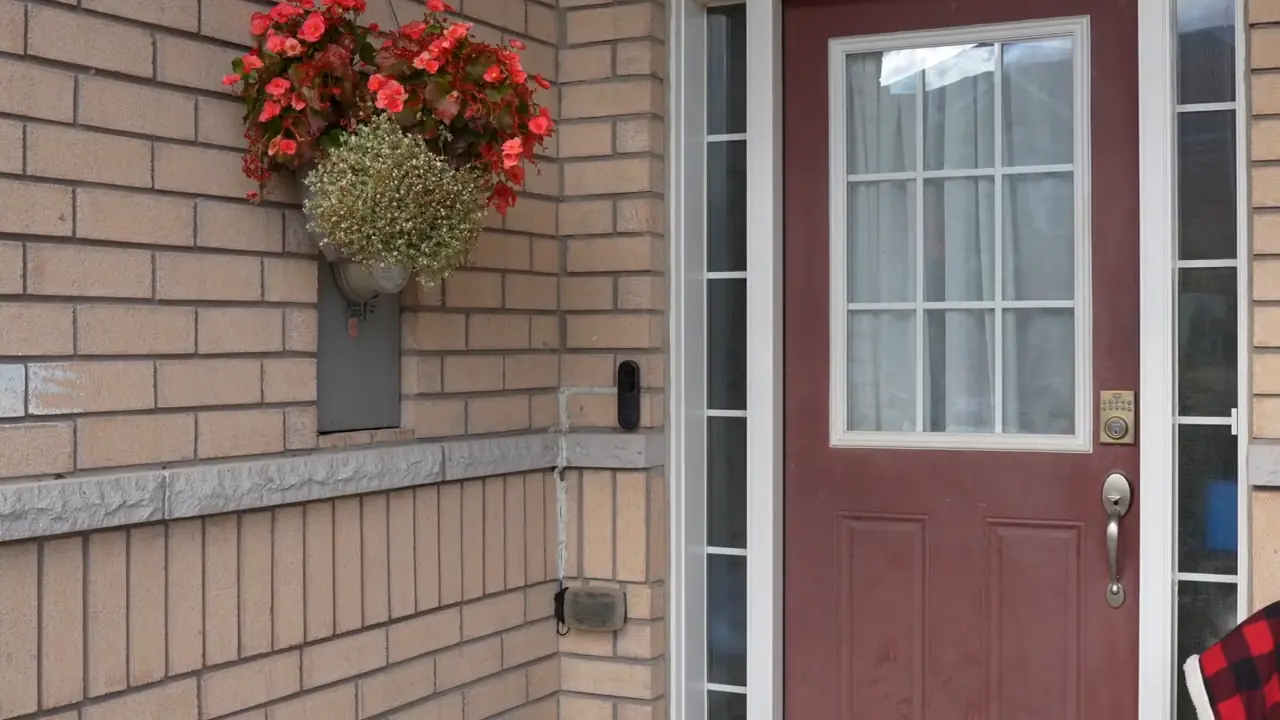
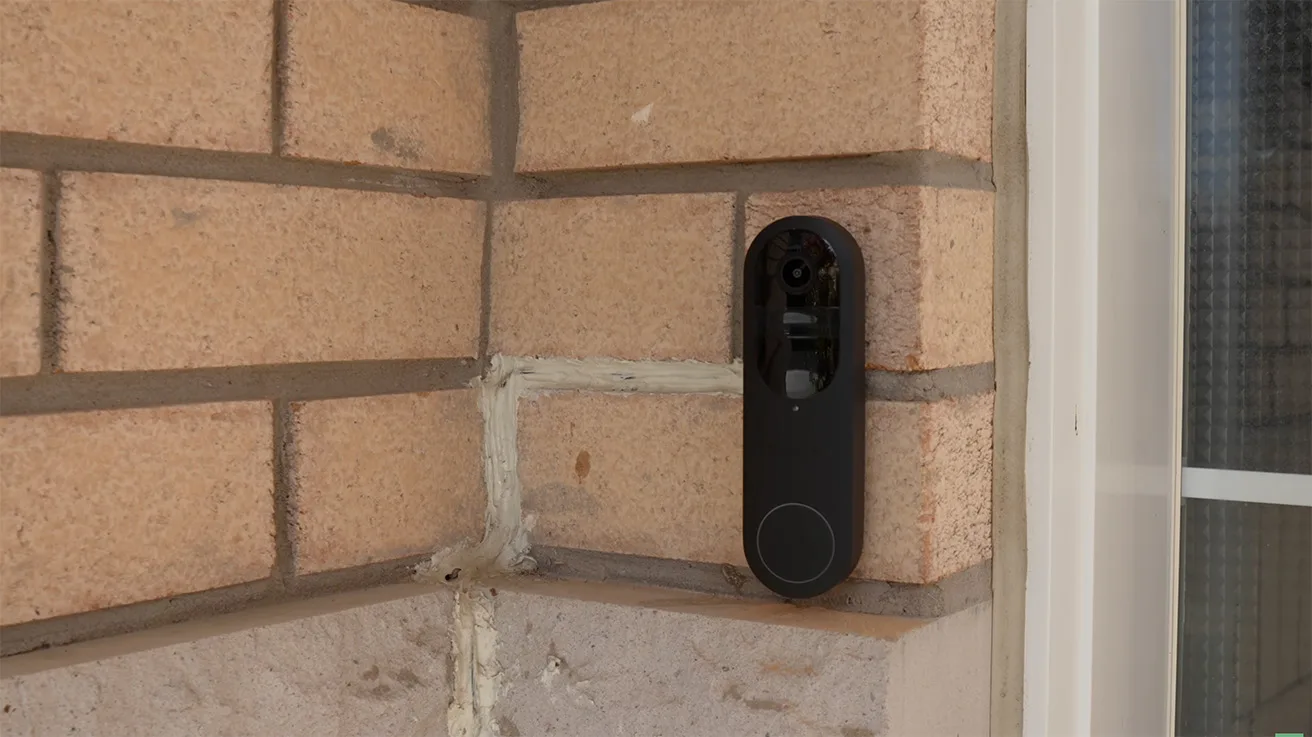
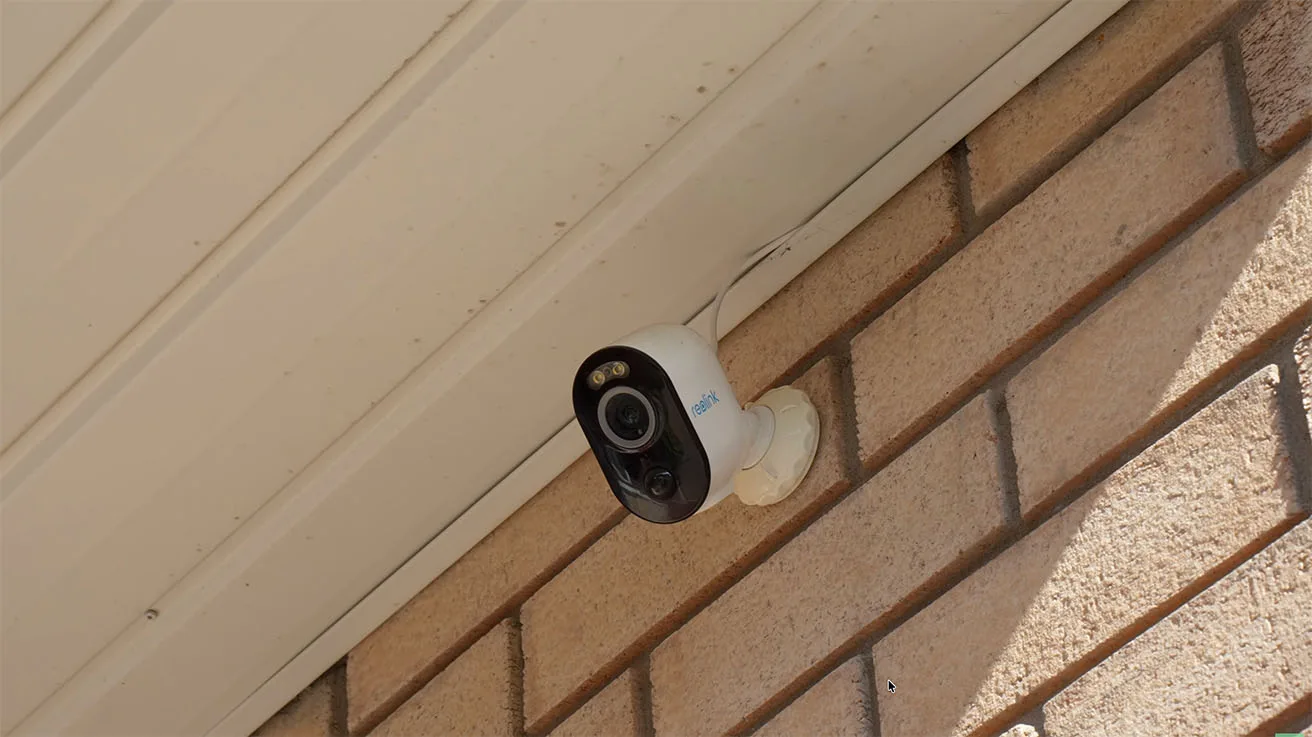
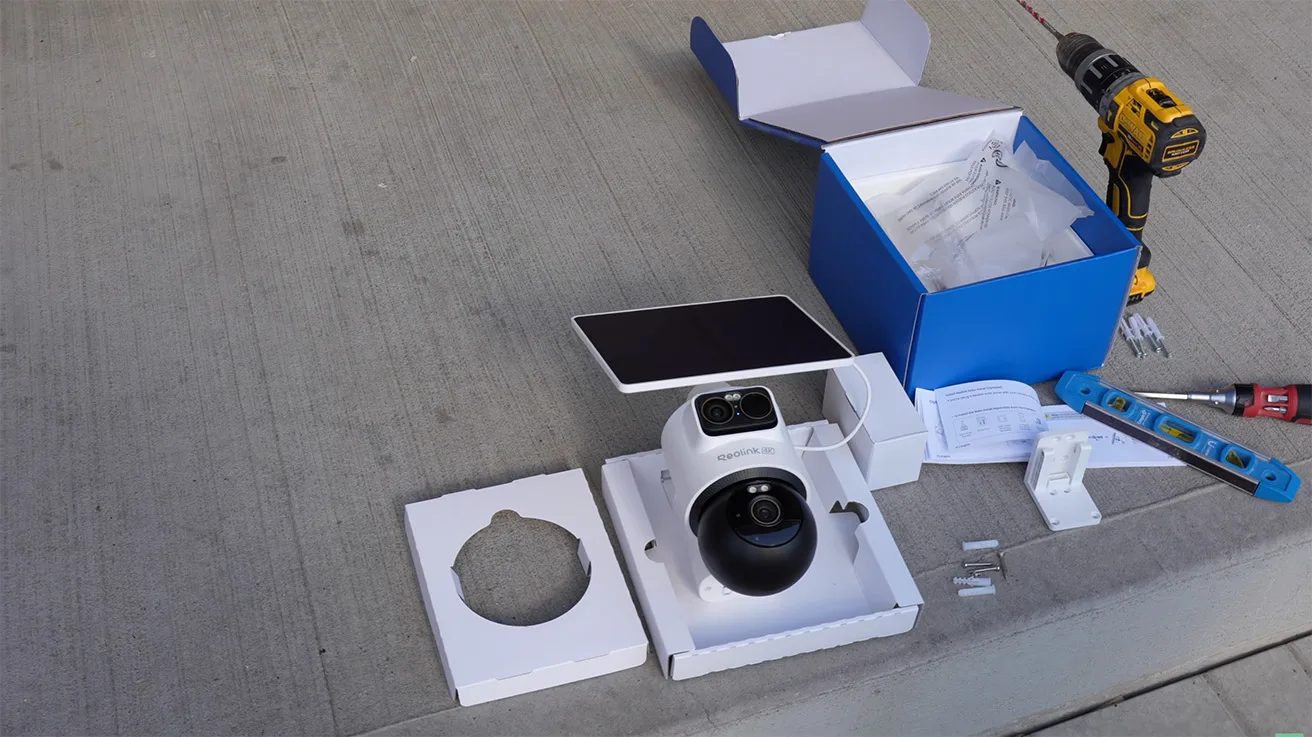
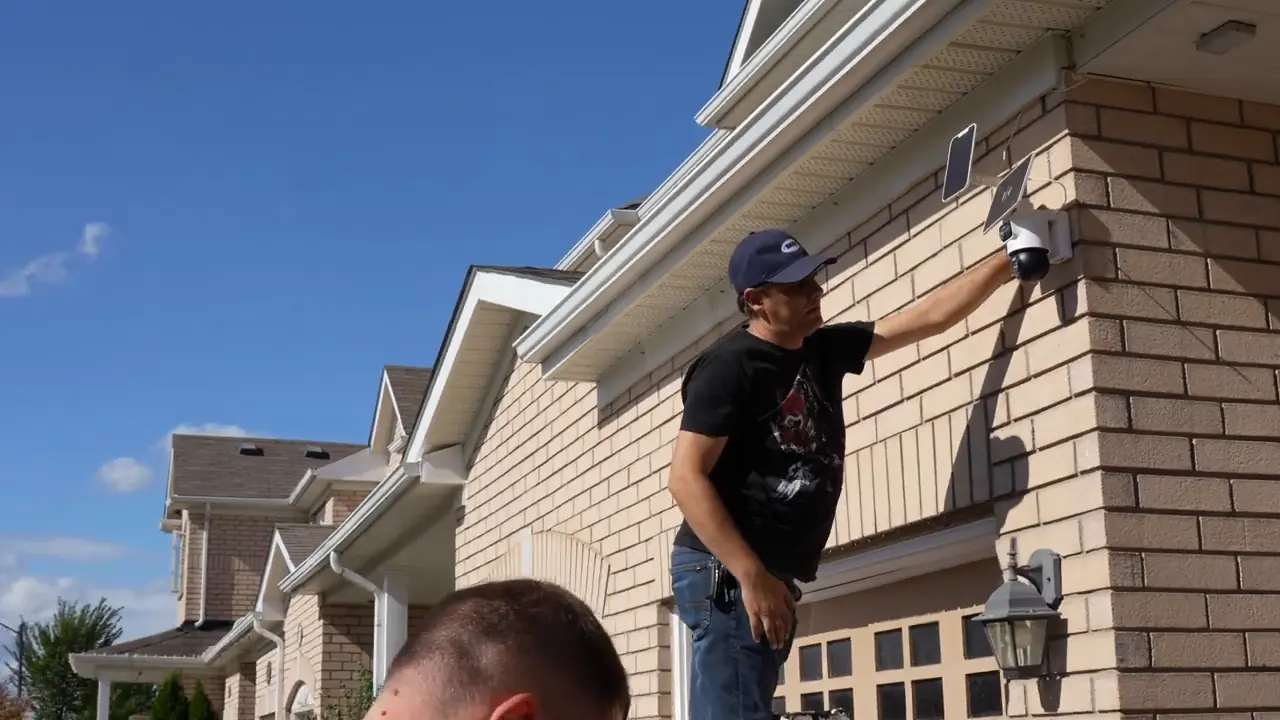
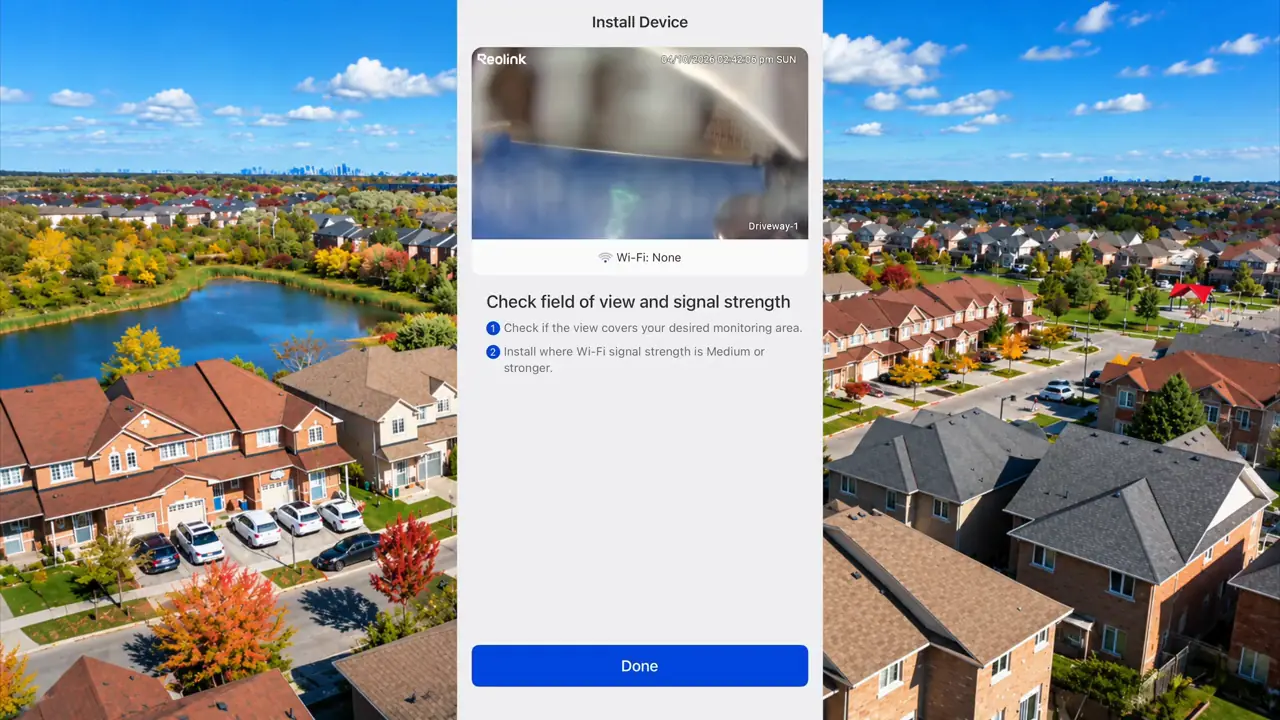
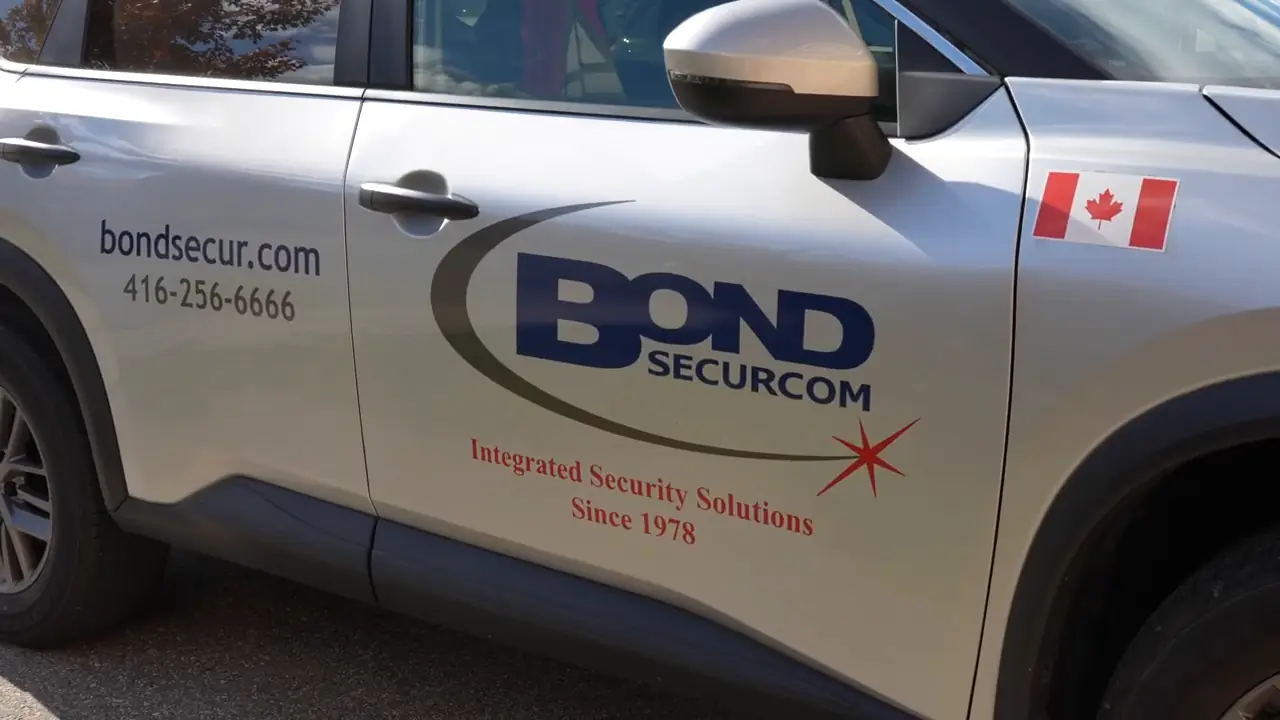
The existing entrance camera stayed in place. The new camera addressed a different coverage gap.
1 / 7
What the 4K + 3K Dual-View Design Changes
A conventional pan-and-tilt camera turns away from one area to follow another. The OMVI 2i Ultra gives those jobs to separate modules. The upper camera holds the overview while the lower pan-and-tilt camera follows activity or moves to a position you select.
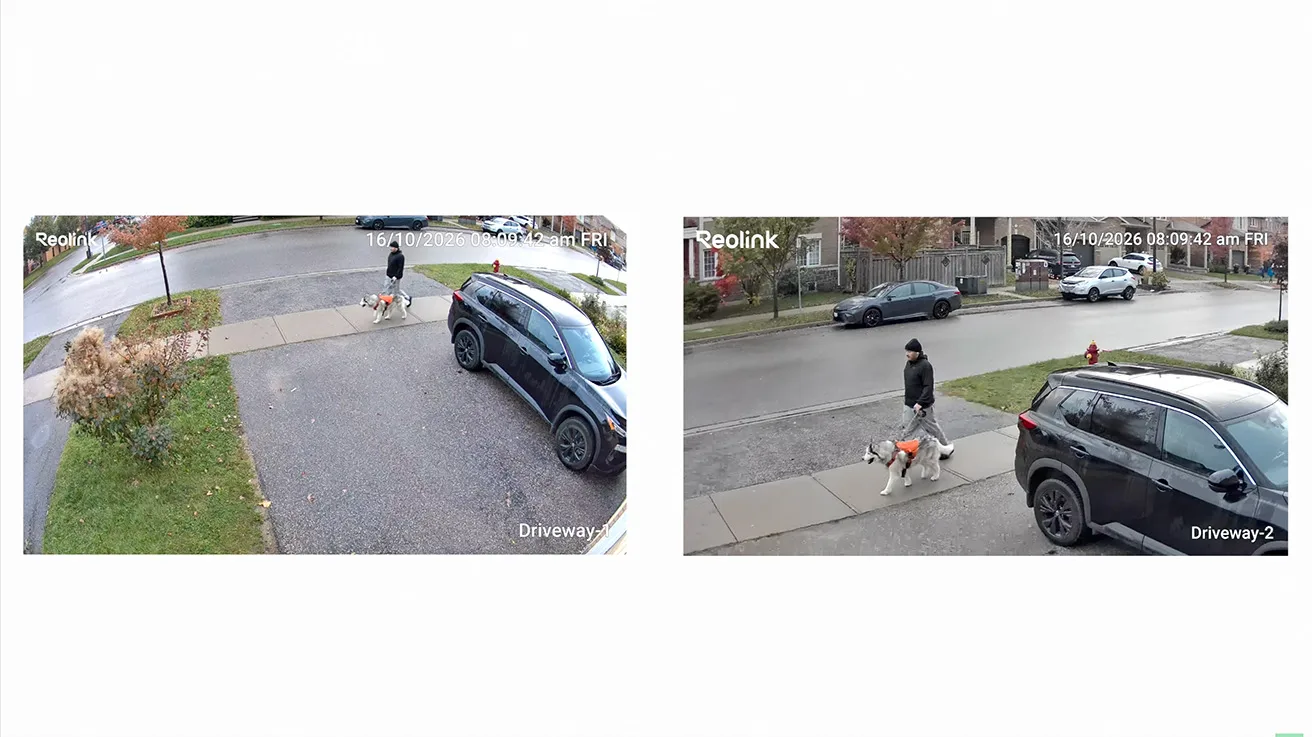
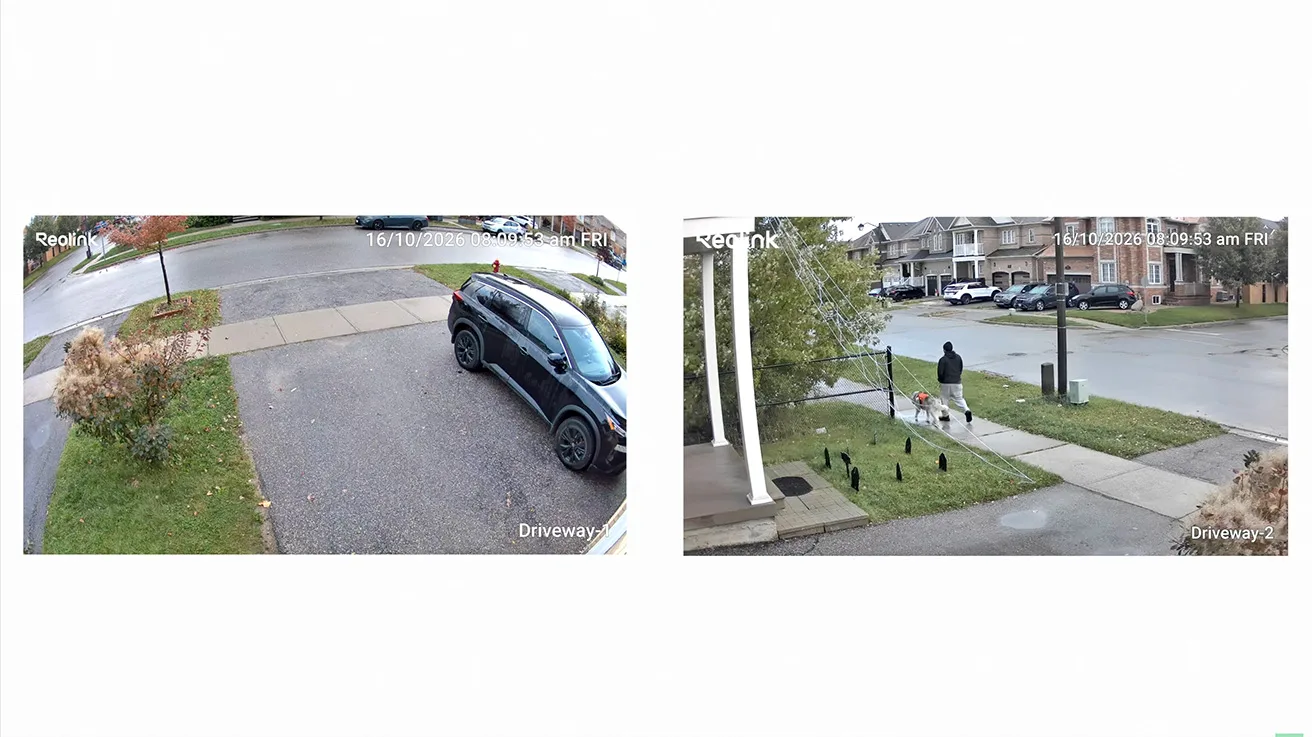
In the side-by-side test, I could watch a person in the lower view without losing the driveway context in the upper view. That is the practical advantage here. “4K + 3K” describes two different views; it does not mean one combined 7K image or continuous visibility around every obstacle.
| Camera module | Role | What to consider |
|---|---|---|
| Upper 4K camera | Maintains the broad scene while the lower camera moves. | Aim it at the coverage area you want to preserve. |
| Lower 3K pan-and-tilt camera | Follows a target or turns toward a selected location. | Its tighter view changes as the camera turns. It cannot see through cars, walls or landscaping. |
The official OMVI 2i Ultra specifications list a 110° horizontal field of view for the upper camera and a narrower 52° horizontal view for the lower camera, with 355° motorized pan and 55° tilt. Those angles help explain the different views; they do not guarantee identification at any particular distance.
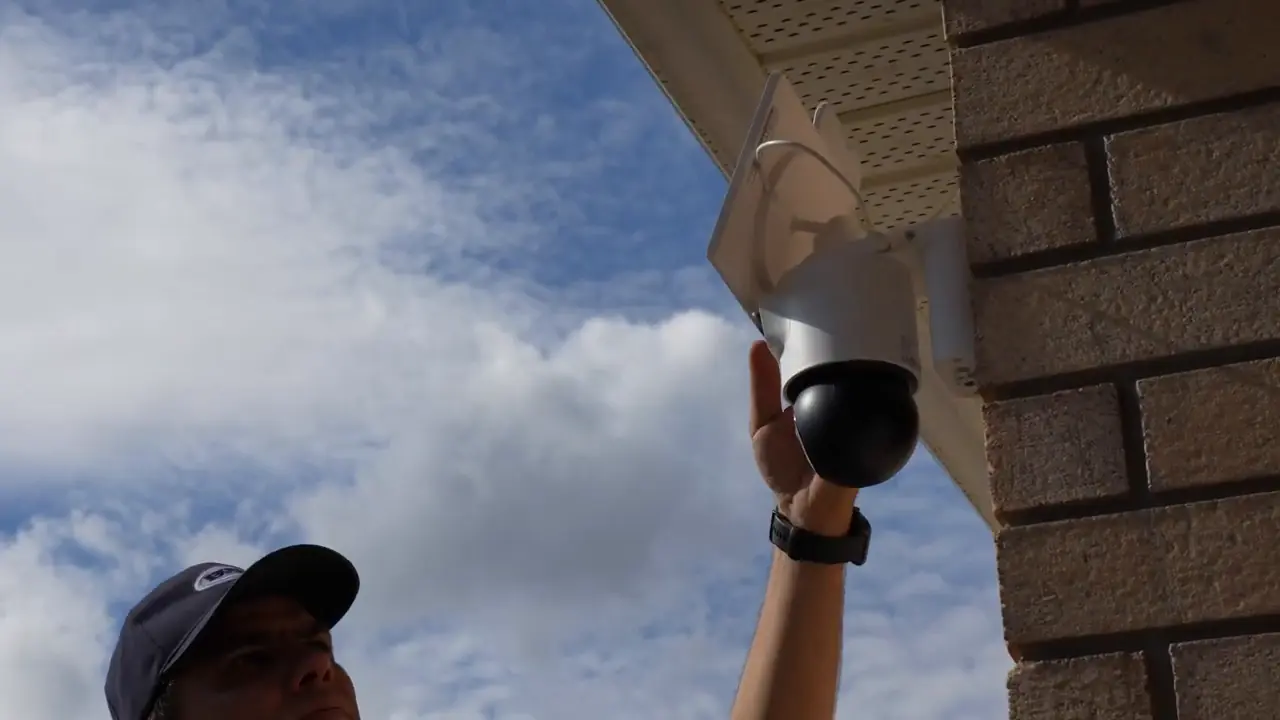
The physical camera combines the upper overview module and the lower pan-and-tilt module.
1 / 3
SyncTrack and Pinpoint: Automatic Following or Manual Control
SyncTrack in the person and vehicle tests
SyncTrack links detection in the upper view with movement of the lower camera. When the upper camera detects activity, the lower camera can turn toward it and follow, while the overview stays available. The lower camera can also track activity within its own view.
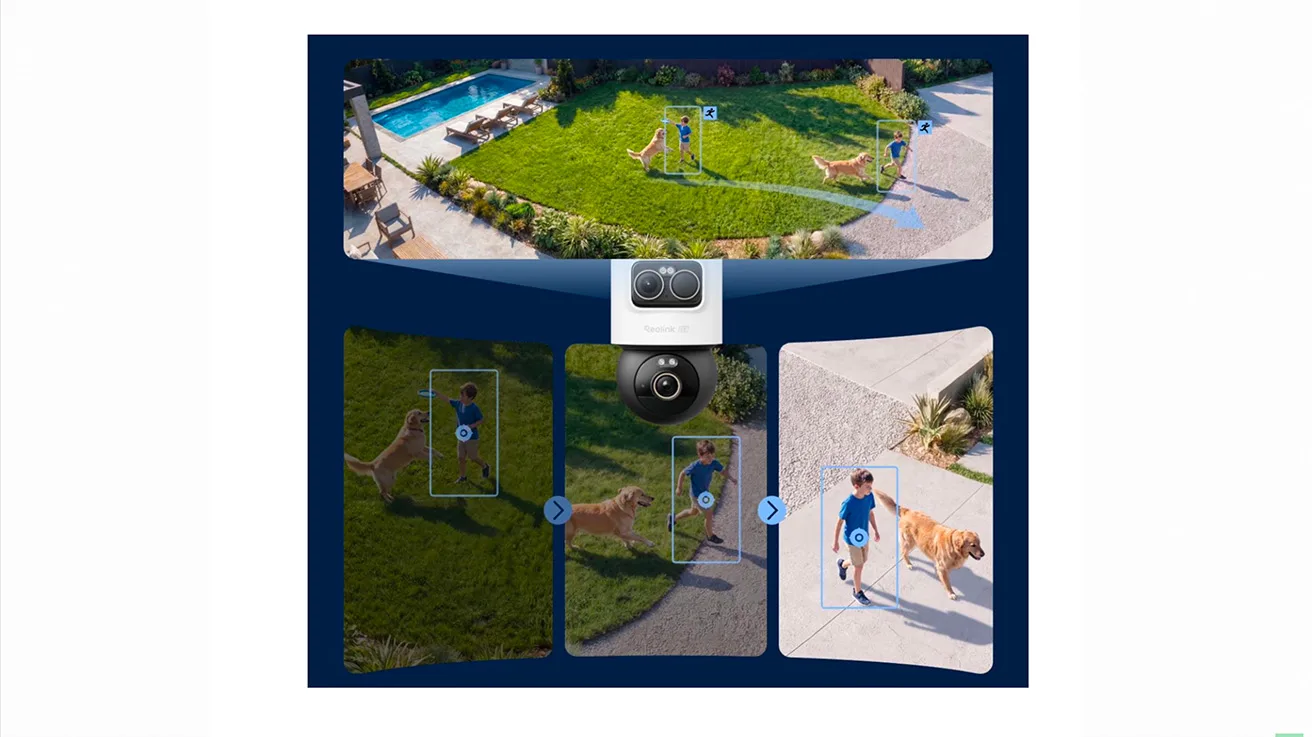
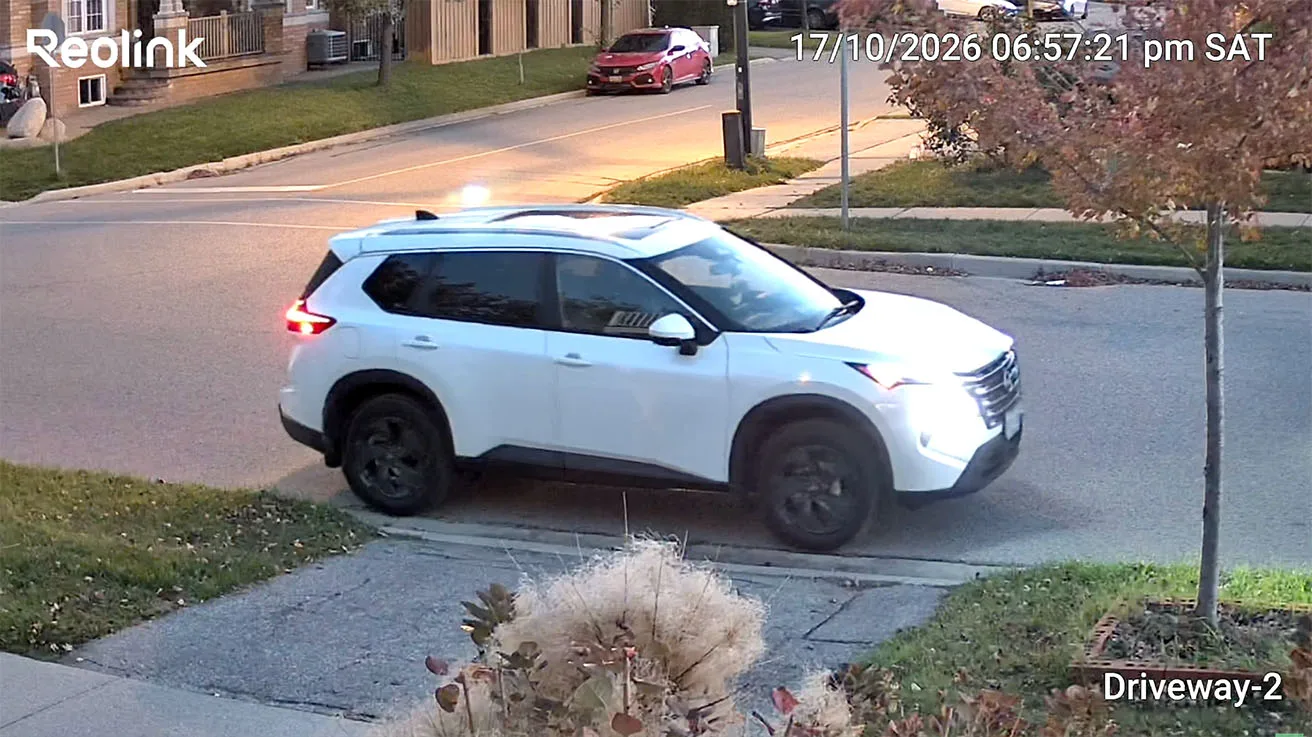
We asked a person to cross the driveway, change direction near the vehicles and walk along the front of the house. We also tested a car arriving and leaving. The recorded examples show the lower view following those movements instead of requiring repeated manual steering.
These are demonstrations from one property. We did not run a scored accuracy test or establish a maximum reliable tracking distance. Target speed, lighting, distance, obstructions and tracking settings can change the outcome.
Reolink also documents Auto-Framing, which adjusts how the target is framed. Keep the functions separate: SyncTrack coordinates the two cameras, Auto-Framing changes the framing, and Pinpoint gives you manual control. The official SyncTrack and Auto-Framing guide explains their requirements. I would not treat the tighter view in this review as proof of optical zoom.
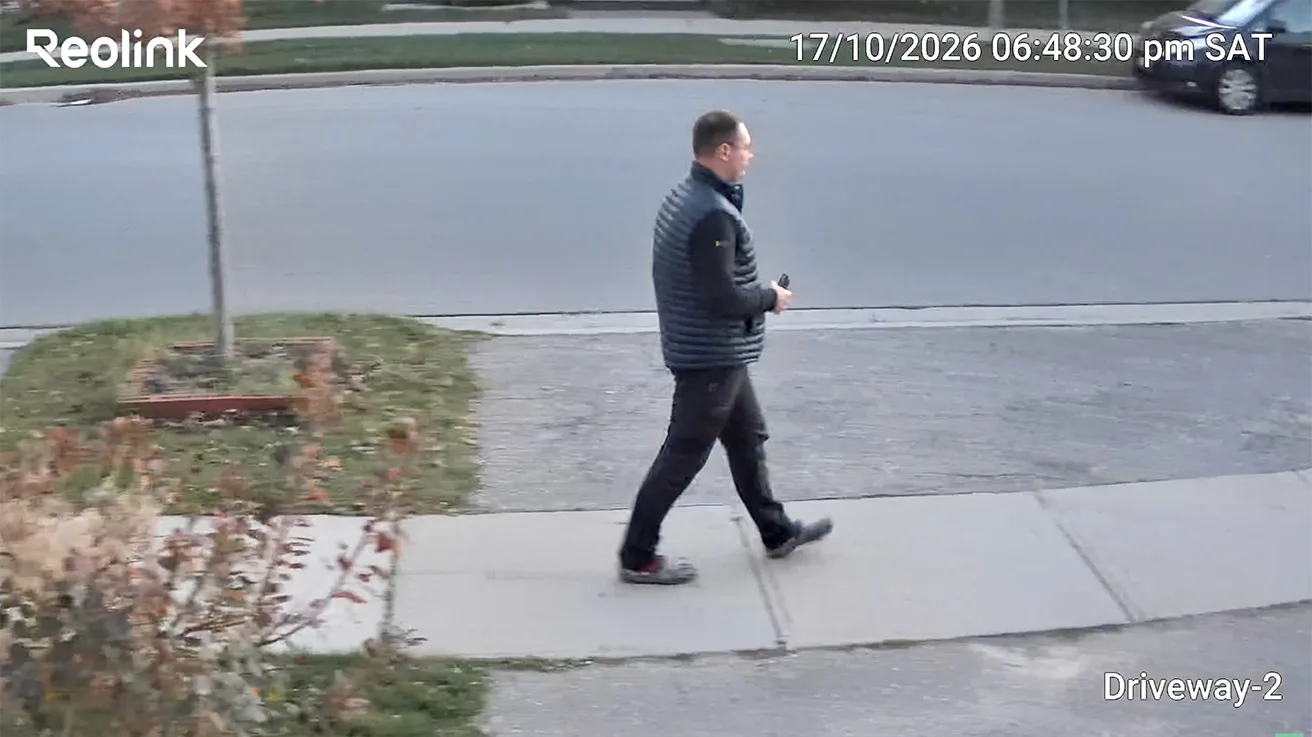
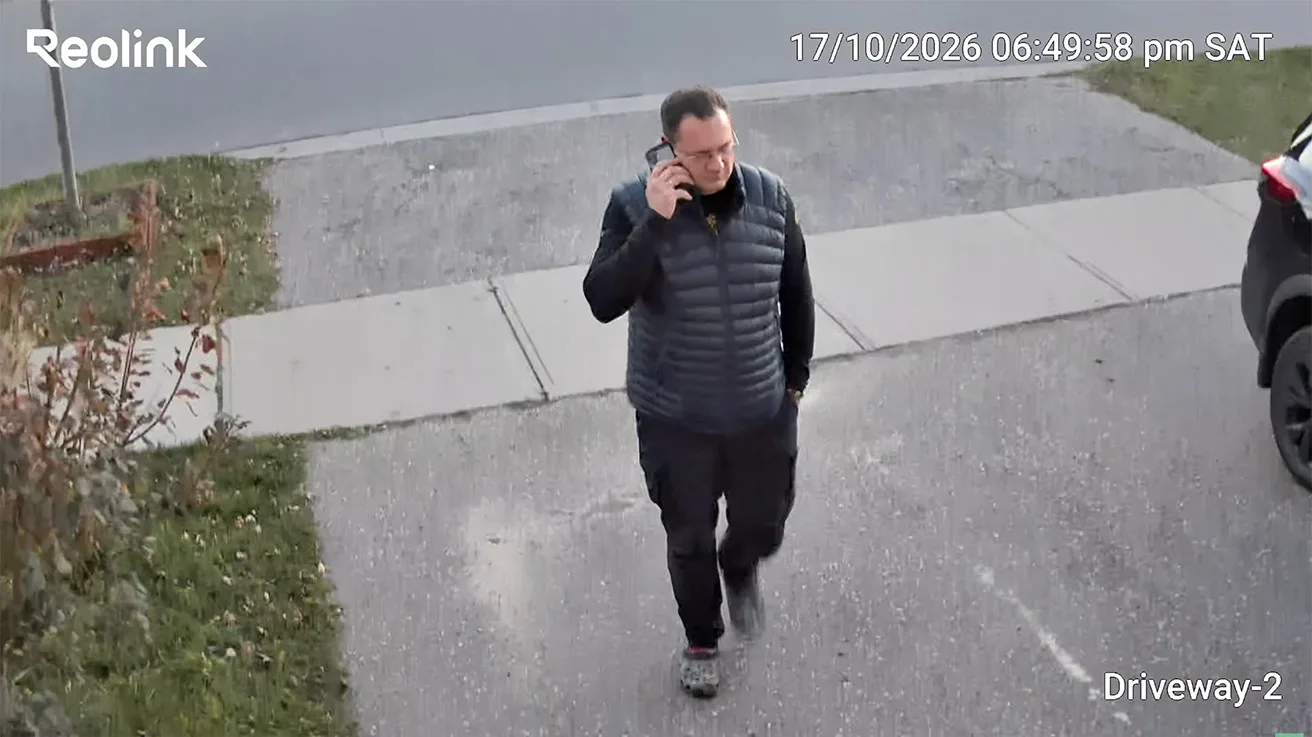
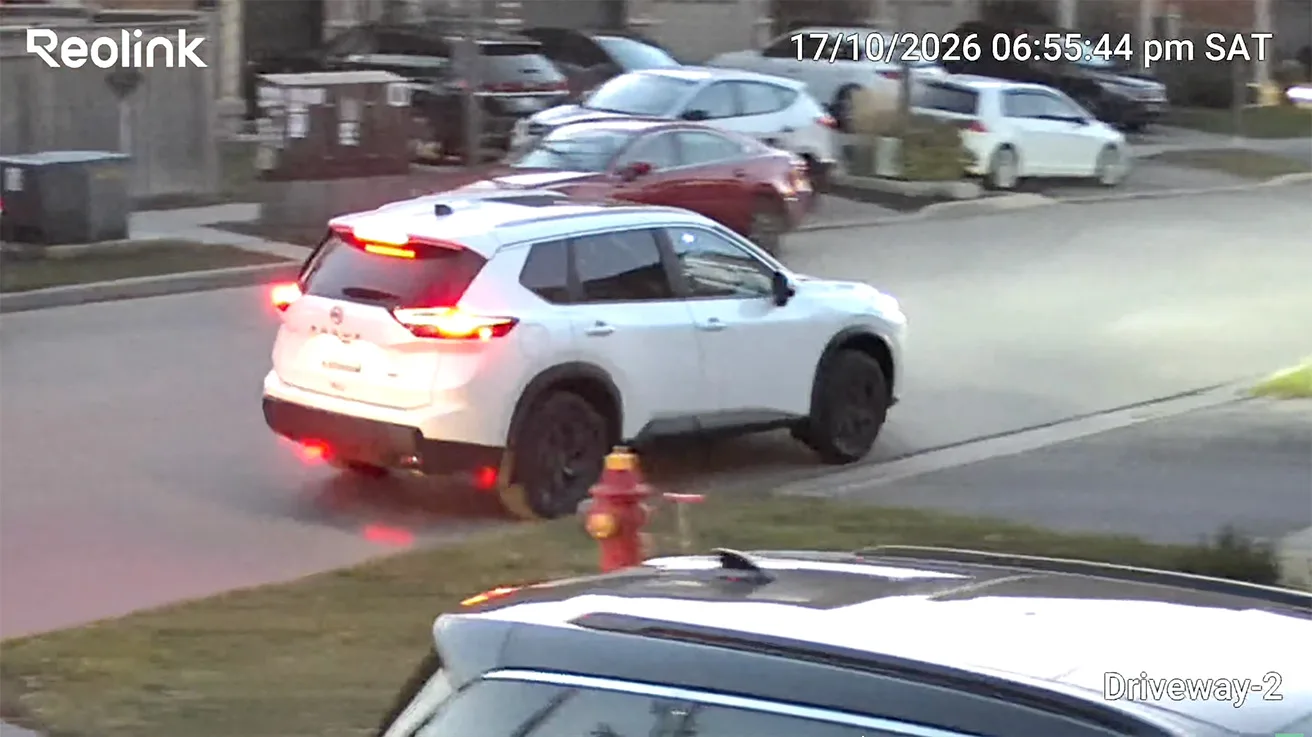
A person crosses the driveway during the tracking test.
1 / 4
Pinpoint: tap the area you want to inspect
Pinpoint was useful when I wanted to choose the view myself rather than wait for a detection. In the Reolink App, I selected a location in the wide view and the lower camera turned toward it. I tried different parts of the driveway and the area near the house while retaining the overview.
To use it in the supported App interface, open live view, select Pinpoint and tap within the indicated area of the panoramic view. Follow a calibration prompt if one appears. Reolink’s Pinpoint instructions specify the supported interfaces and software requirements; a generic joystick control is a different way of steering the camera.
For this driveway, that made checking a particular area more direct. It does not remove a blind spot caused by a physical obstruction, and it is not the same as automatic tracking.
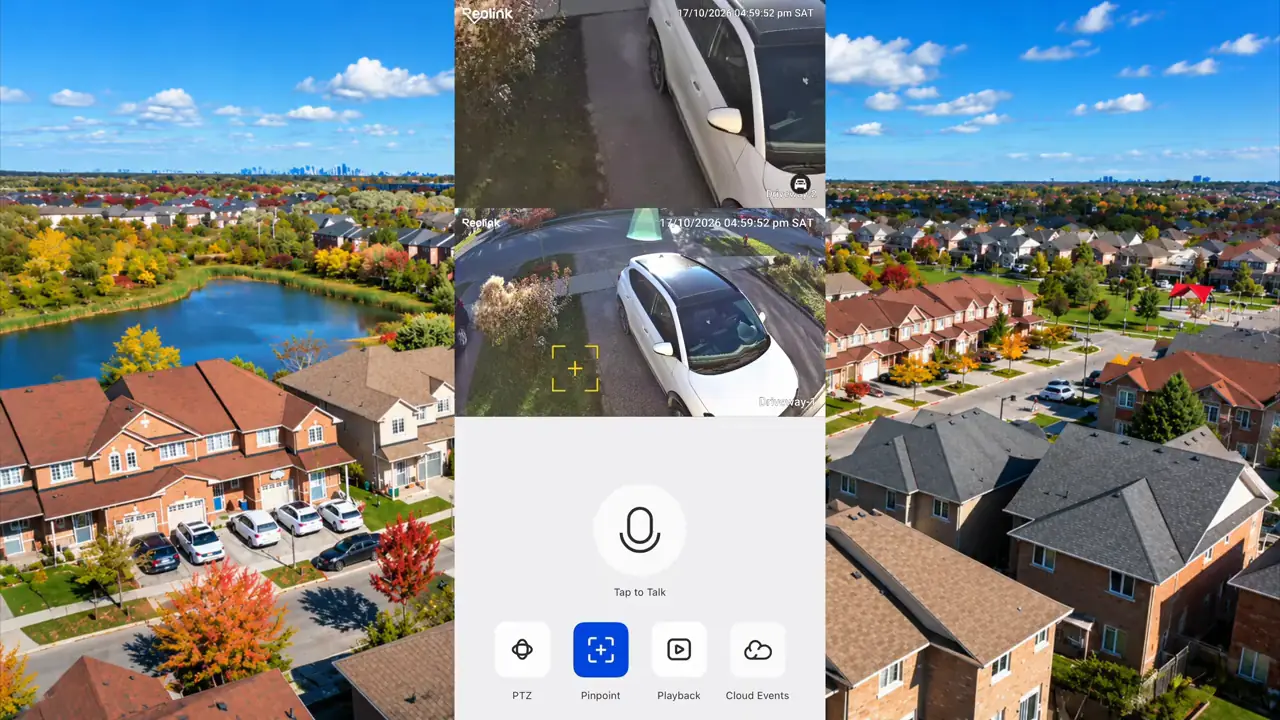
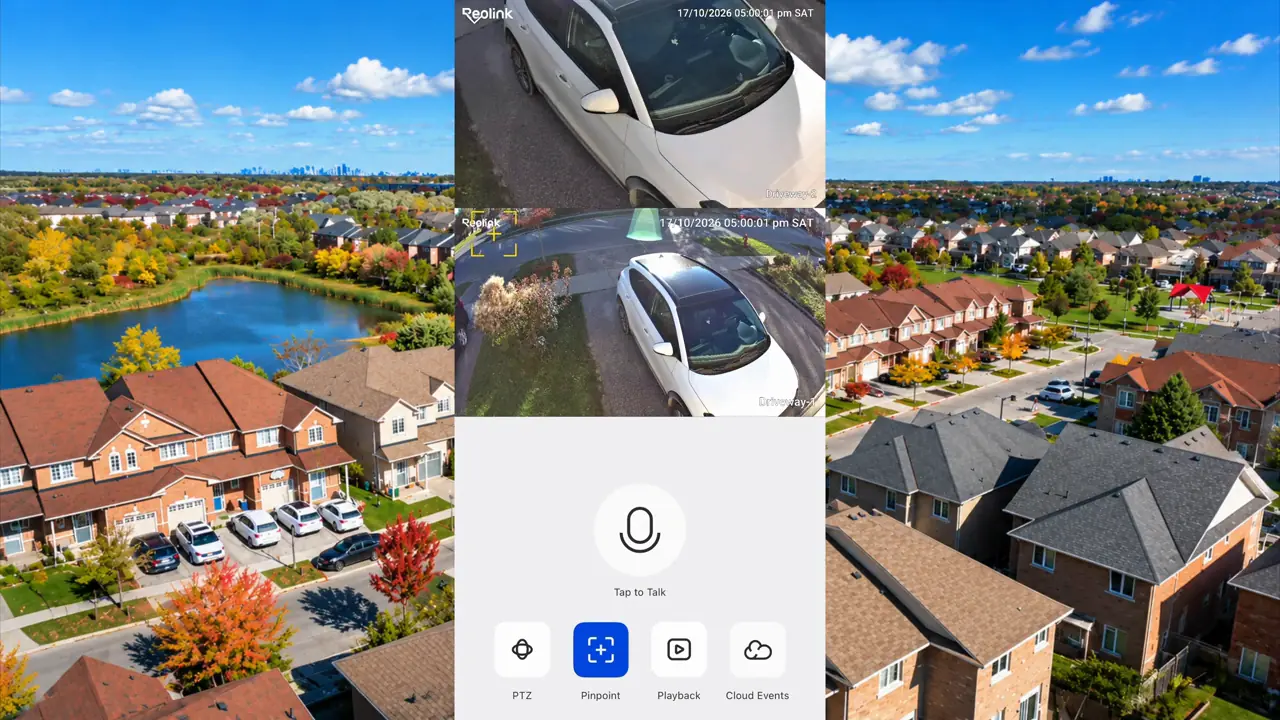
The first Pinpoint demonstration in the Reolink App. The surrounding aerial view is an editorial background.
1 / 2
Person, Vehicle and Animal Detection: Tune It for Your Property
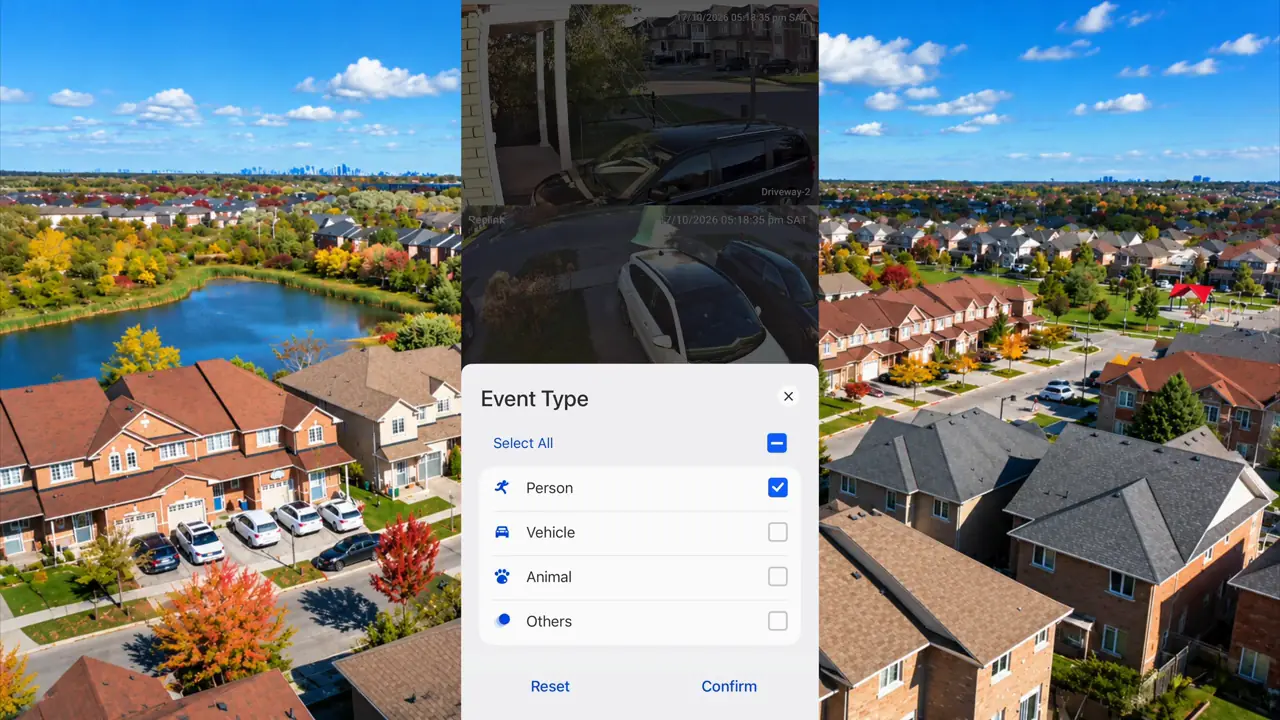
The camera offers person, vehicle and animal detection categories. In the App, I checked the event-type controls and the recorded activity. Our clearest controlled examples are the person and vehicle tracking tests; the night footage also includes a person walking a dog.
A category in a settings menu is not an accuracy result. We did not count missed events or measure a false-alert rate. The useful question for your installation is whether the alerts match the activity you actually want to know about.
After mounting, walk the routes you care about, check the resulting clips and adjust the available detection and notification settings. Include the driveway entrance and the edges of the view, not just the area directly below the camera. Repeat the check after dark. This gives you a more useful setup than assuming the default settings fit every property.
Day and Night Video: Context, Detail and Real Limits
In daylight, the upper view shows the driveway layout and the approach from the street. The lower view puts more of the frame on the person or vehicle being followed. I find that combination more useful than judging the camera only by its resolution labels: one view explains where activity happened, and the other helps you inspect it.
After dark, we tested infrared footage and showed color night video in the Reolink App with illumination active. The infrared clips include movement across the property and a person with a dog. You can see the effect of motion and camera movement in the night footage; a still frame should not be mistaken for guaranteed detail throughout an event.
The installation angle, available light, target distance and movement all affect useful detail. We did not establish a license-plate reading distance or prove reliable facial identification across the full driveway. If those are project requirements, plan and test a view specifically for them.
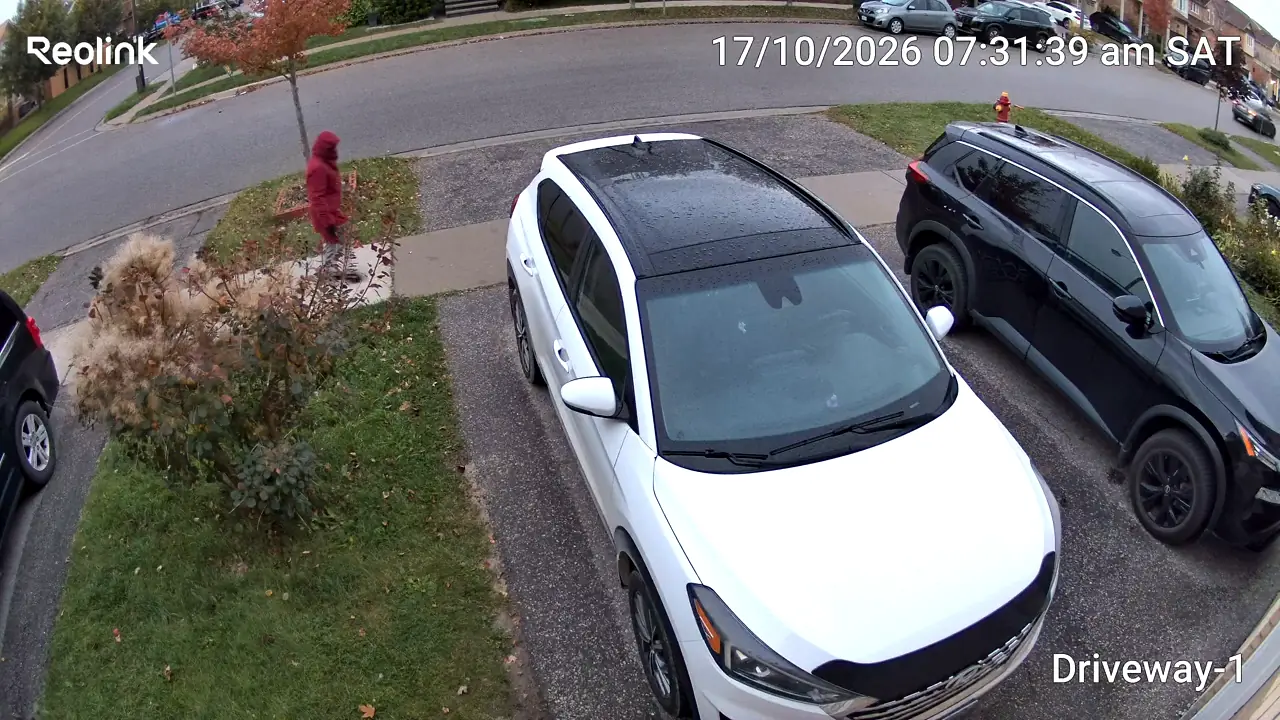
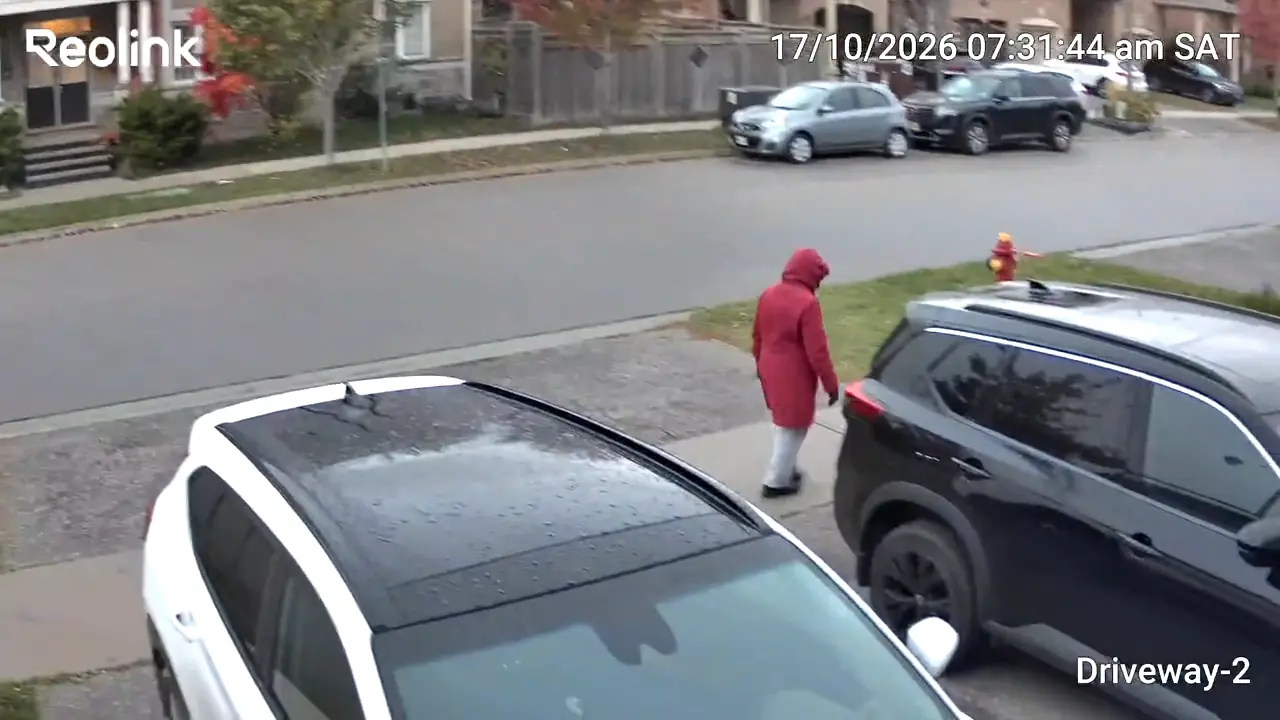
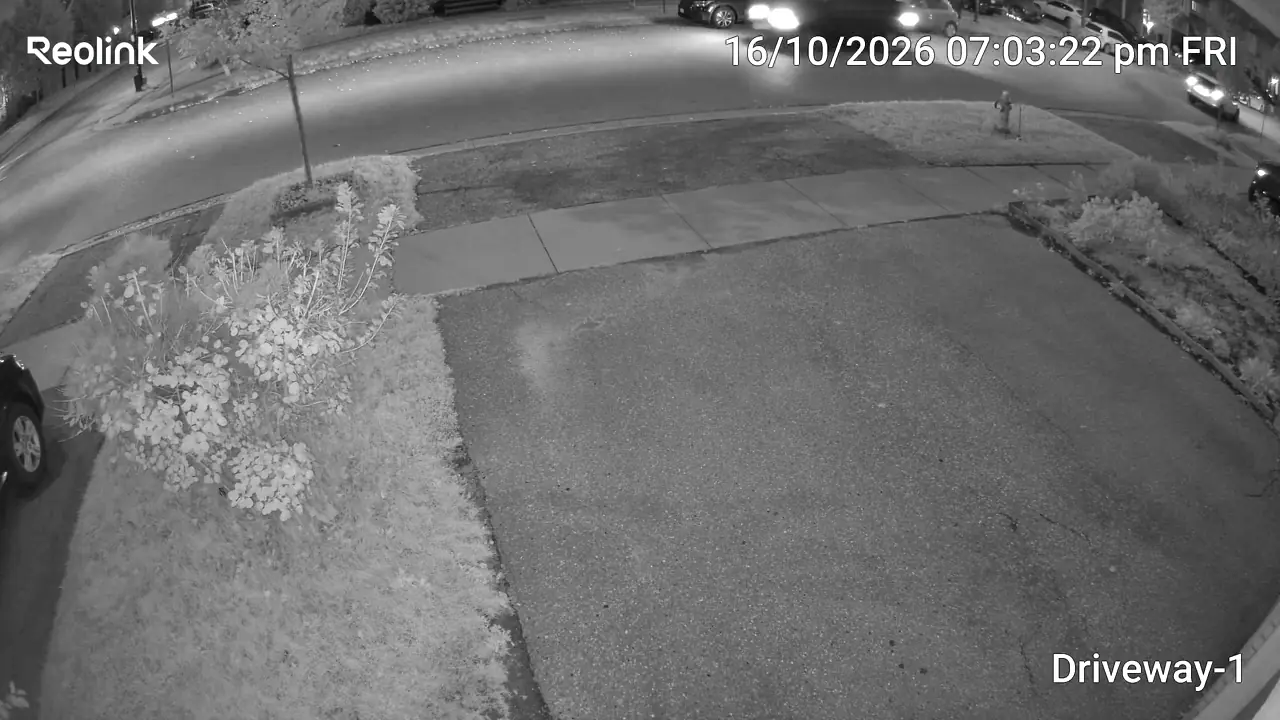
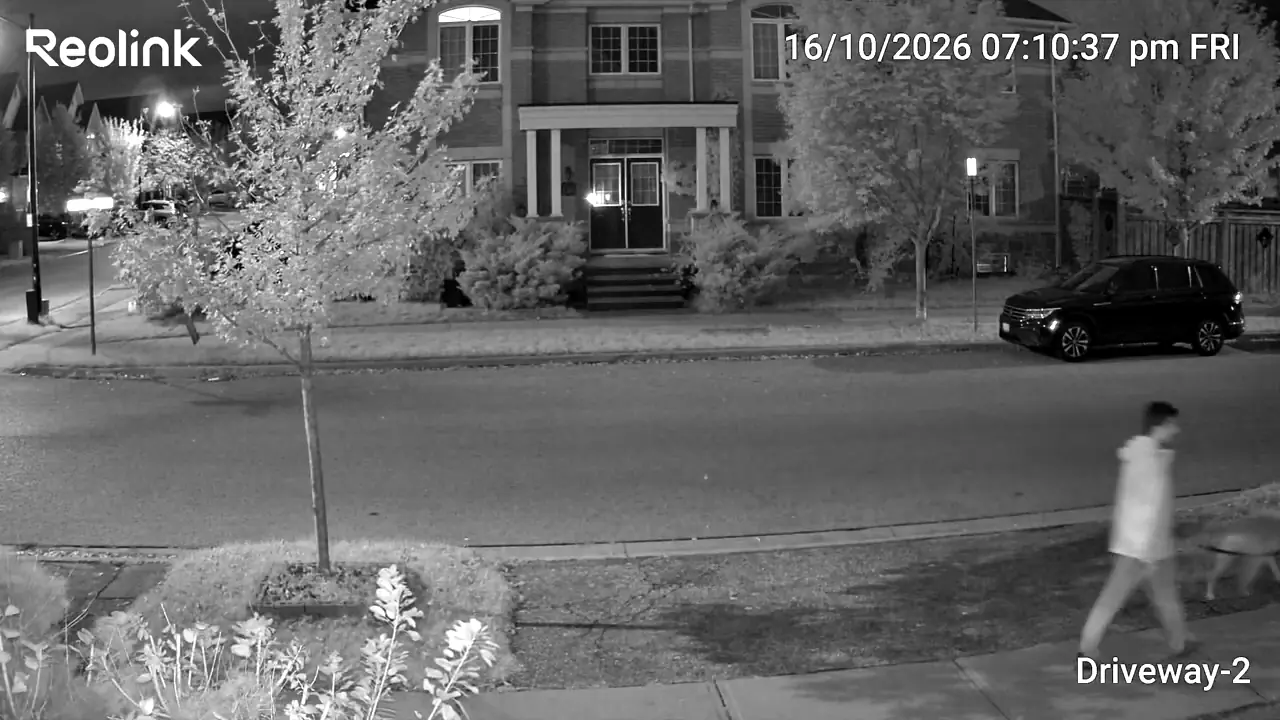
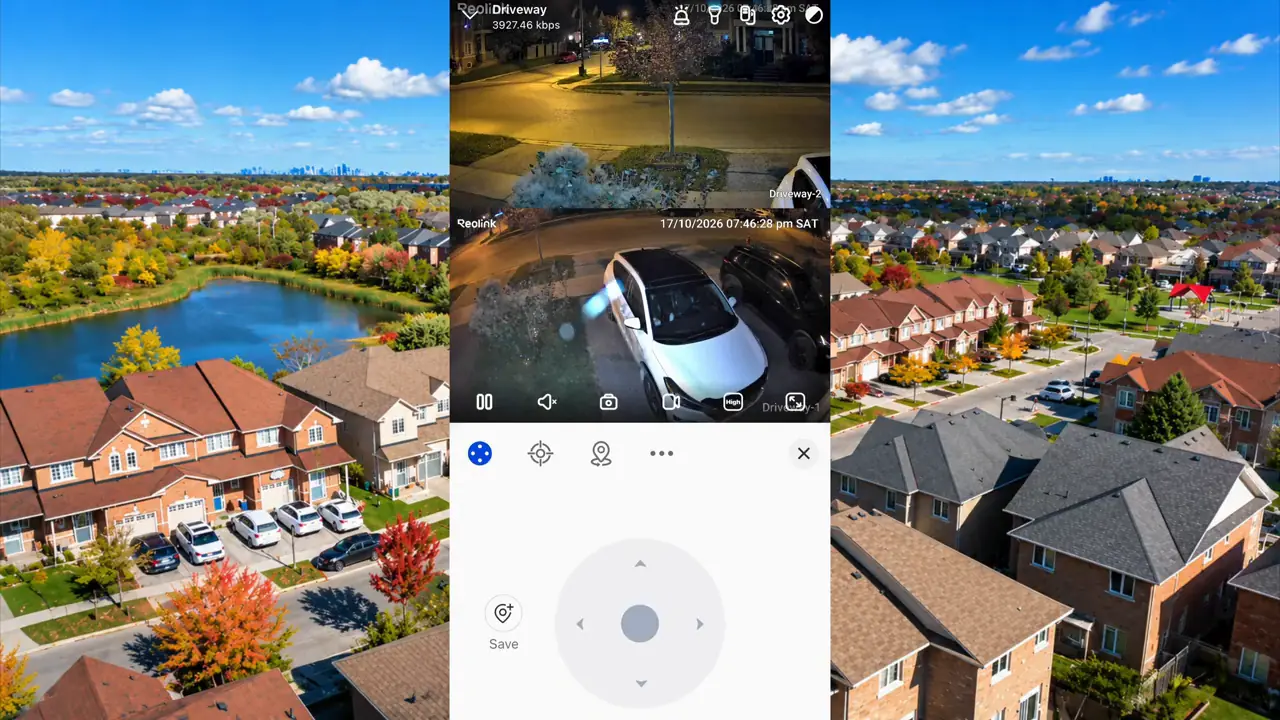
The upper view shows the driveway layout, parked vehicles and approach from the street.
1 / 5
Lights, siren and two-way audio
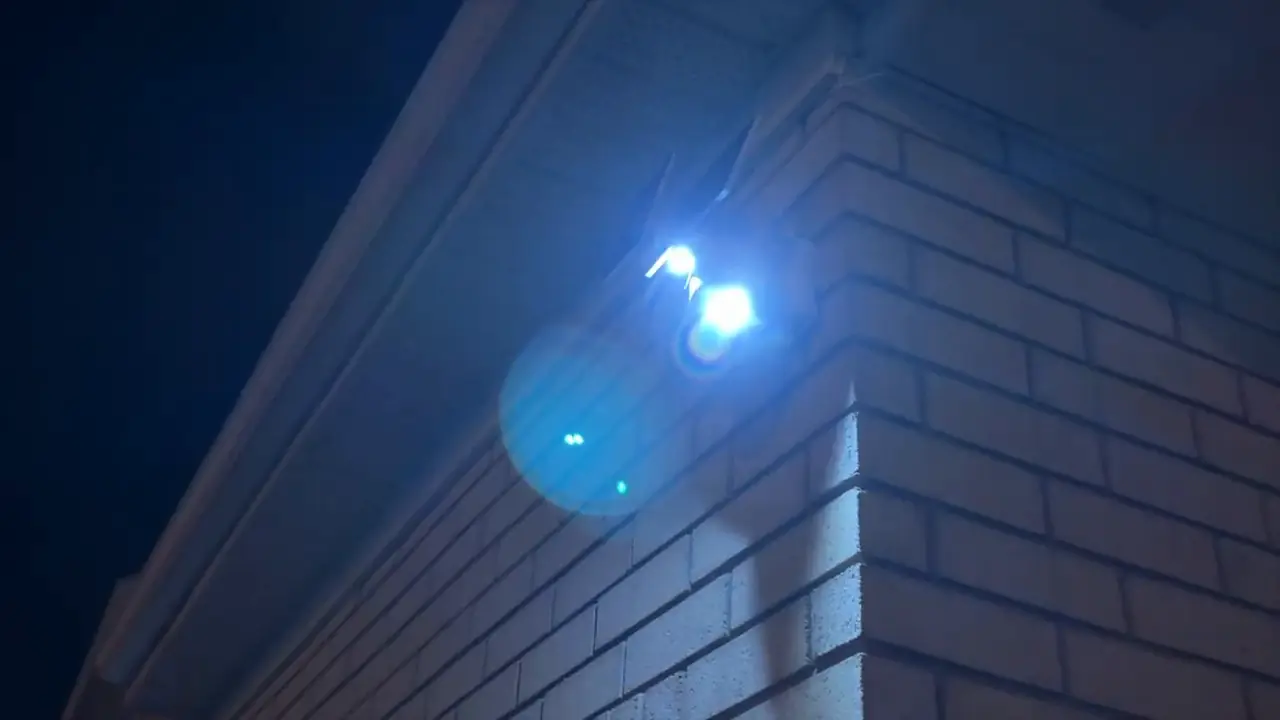
We also demonstrated the camera’s lights, siren and two-way audio after dark. These give you ways to attract attention or speak through the camera. The demonstration confirms those functions in this setup; it does not establish that a warning will prevent an incident or replace an alarm-response plan.
SolarEase, Battery Power and Wi-Fi: Plan for the Actual Location
The power arrangement avoids a permanent power cable to the camera. Reolink specifies a detachable 10,000mAh battery and a 6W Reolink SolarEase panel. The removable battery gives you a separate charging option when the panel cannot keep up.
In the video, I discuss Reolink’s estimates of up to six months on battery power and around 30 minutes of suitable sunlight per day to replenish typical daily use. These are manufacturer estimates, not results from a long-term test at this home. A short installation and a few demonstrations cannot establish seasonal battery life.
For a Canadian property, I would plan around shorter winter days, shade, snow and the effect of frequent events on power use. Check the current operating and charging limits for your exact unit before relying on solar charging through winter. Do not assume that a weather-resistance rating guarantees charging at every outdoor temperature.
The camera supports dual-band 2.4GHz and 5GHz Wi-Fi 6, with Bluetooth-assisted setup. We connected it to the home network. Check signal quality at the mounting position before committing to it; a wire-free camera still needs a usable network connection for remote access and notifications.
If there is no usable home Wi-Fi at the location, compare the connectivity options in our cellular security camera guide. The OMVI 2i Ultra is a Wi-Fi model; a solar panel does not give it a cellular connection.
Our Reolink Wi-Fi camera guide provides broader system-planning context. Check the requirements of the specific model you choose rather than assuming every Reolink camera uses the same power, network or recording arrangement.
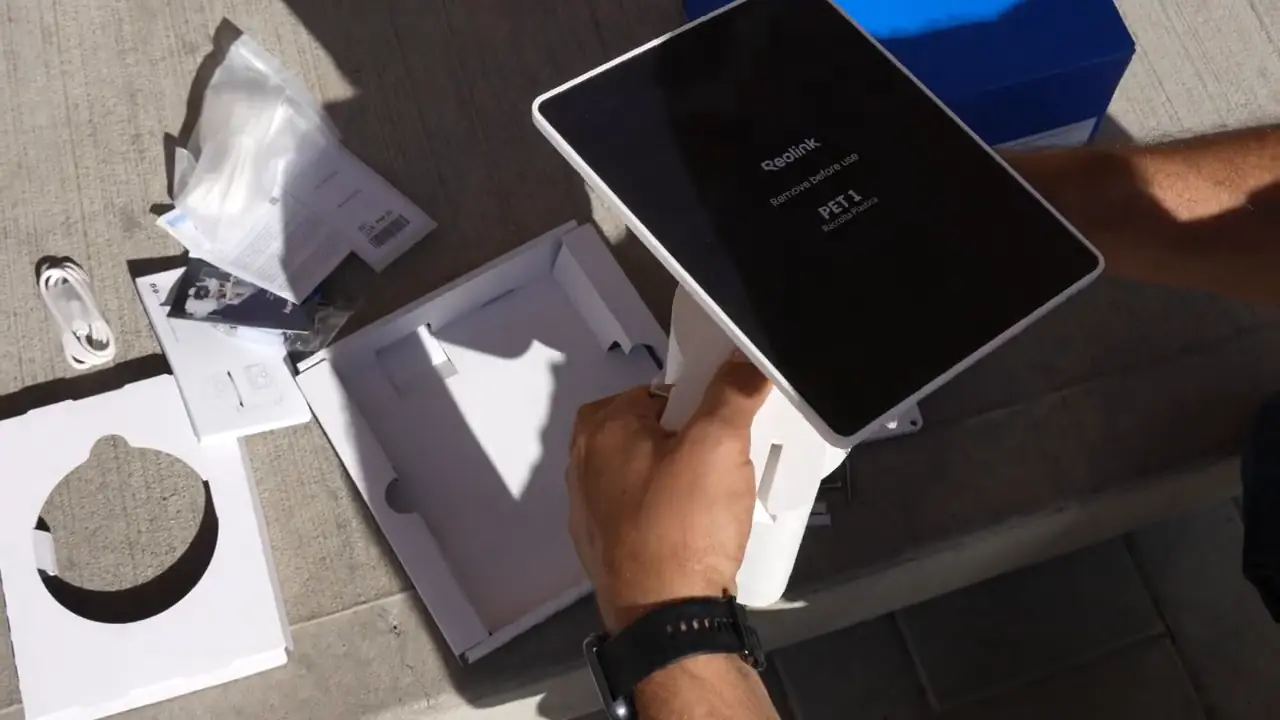
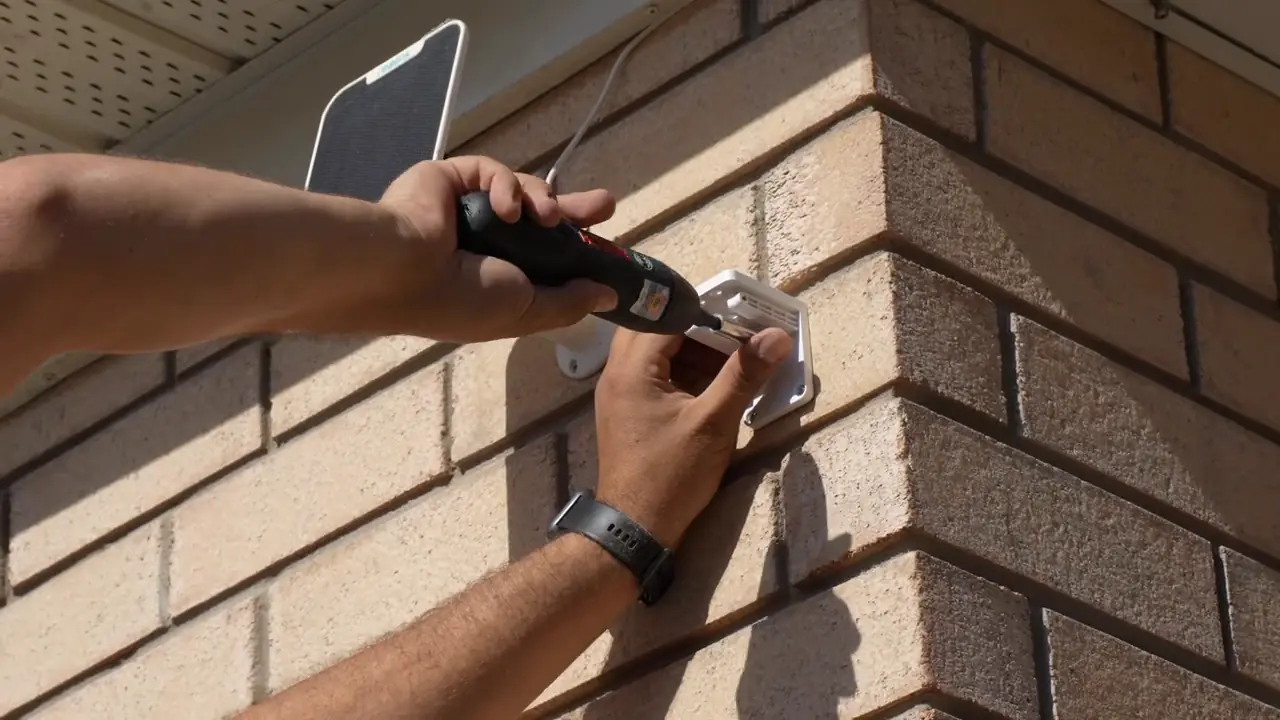
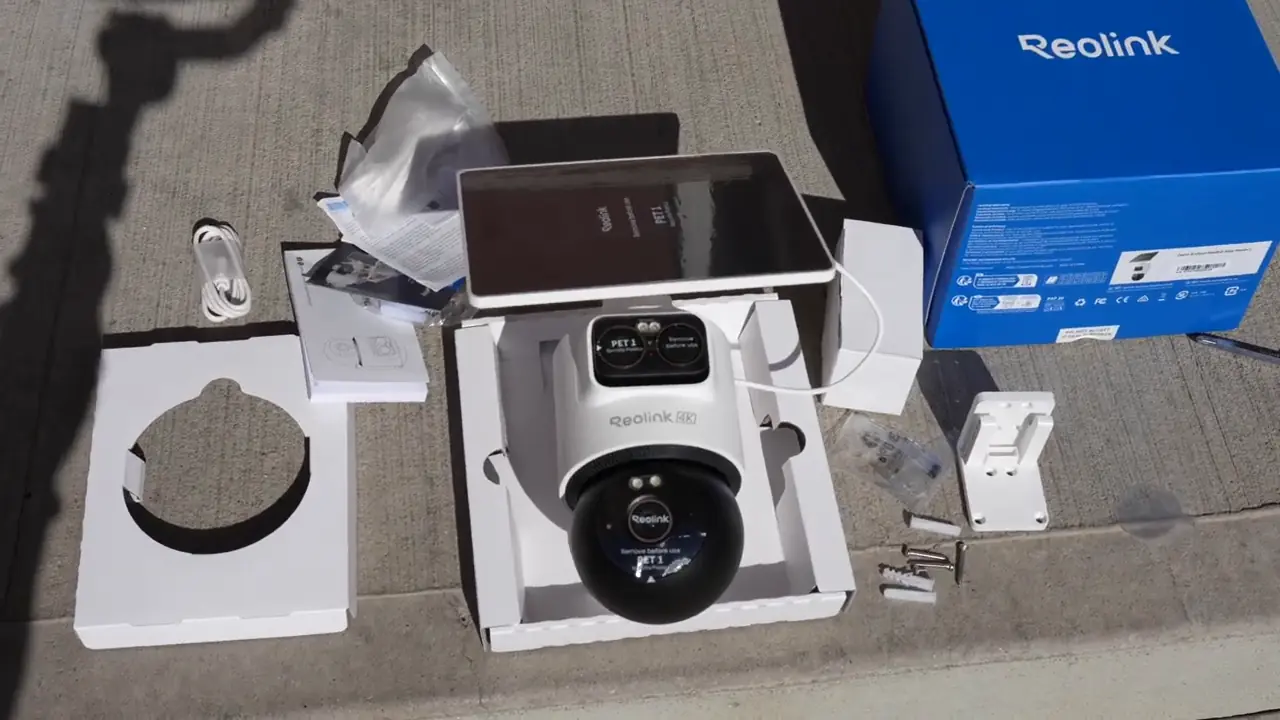
The SolarEase panel before mounting. Check the current regional bundle when ordering.
1 / 2
Local Recording and the Reolink App: What We Actually Used
For this installation, we used a microSD card for motion-event recordings and accessed playback in the Reolink App. The card stayed in the camera; we did not need to remove it to review clips in the App. Reolink lists support for cards up to 512GB, and local recording does not require a paid cloud subscription.
The homeowner already used Reolink Cloud with other cameras. That is separate from what we tested on the OMVI 2i Ultra. Adding a camera to the same App does not establish that it inherits another device’s cloud service or storage plan.
The current product specifications list motion-triggered recording. If you need an uninterrupted 24/7 timeline or footage from before a trigger, do not assume this model provides it. Choose and verify a recording arrangement that explicitly meets that requirement.
For a different recording workflow, our Reolink Altas installation and recording review explores motion, pre-event and continuous modes on that model. Those options must not be assumed to carry over to the OMVI 2i Ultra.
Reolink lists optional Home Hub support, but we did not use a Home Hub or NVR in this installation. Compatibility and features can depend on the camera, recorder and firmware. The direct-to-Wi-Fi, microSD setup described here is the arrangement demonstrated in the video.
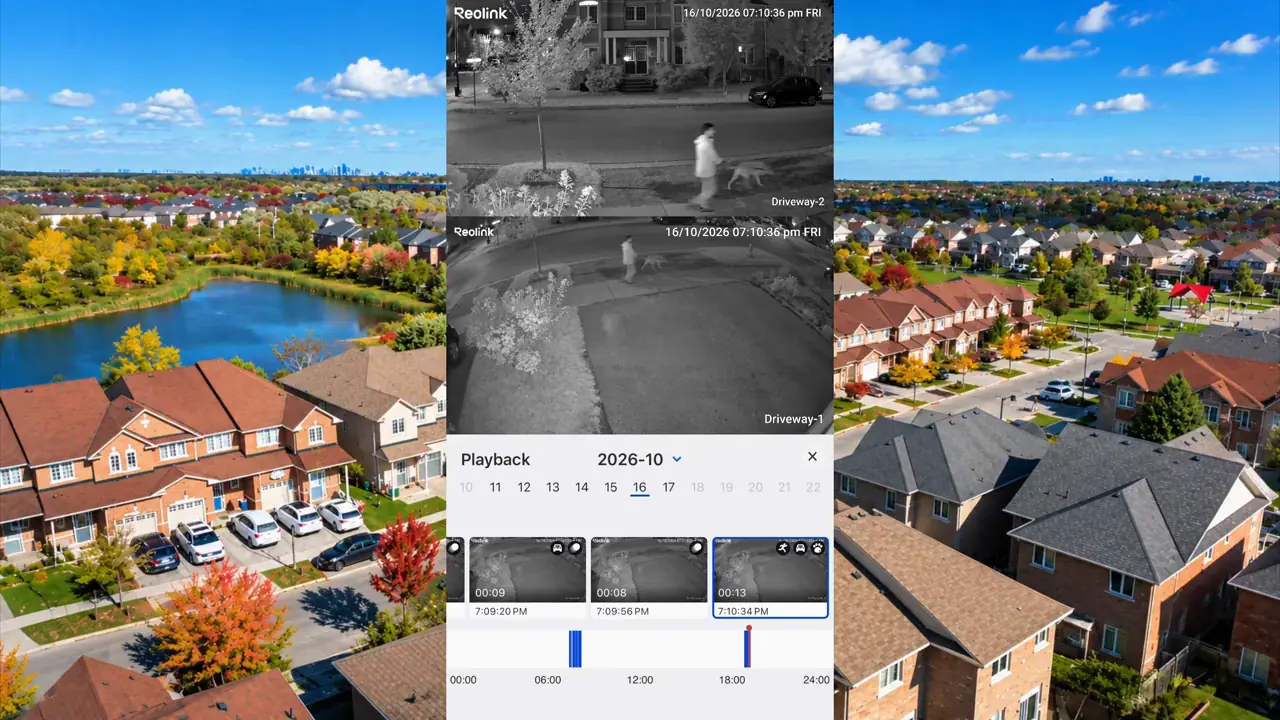
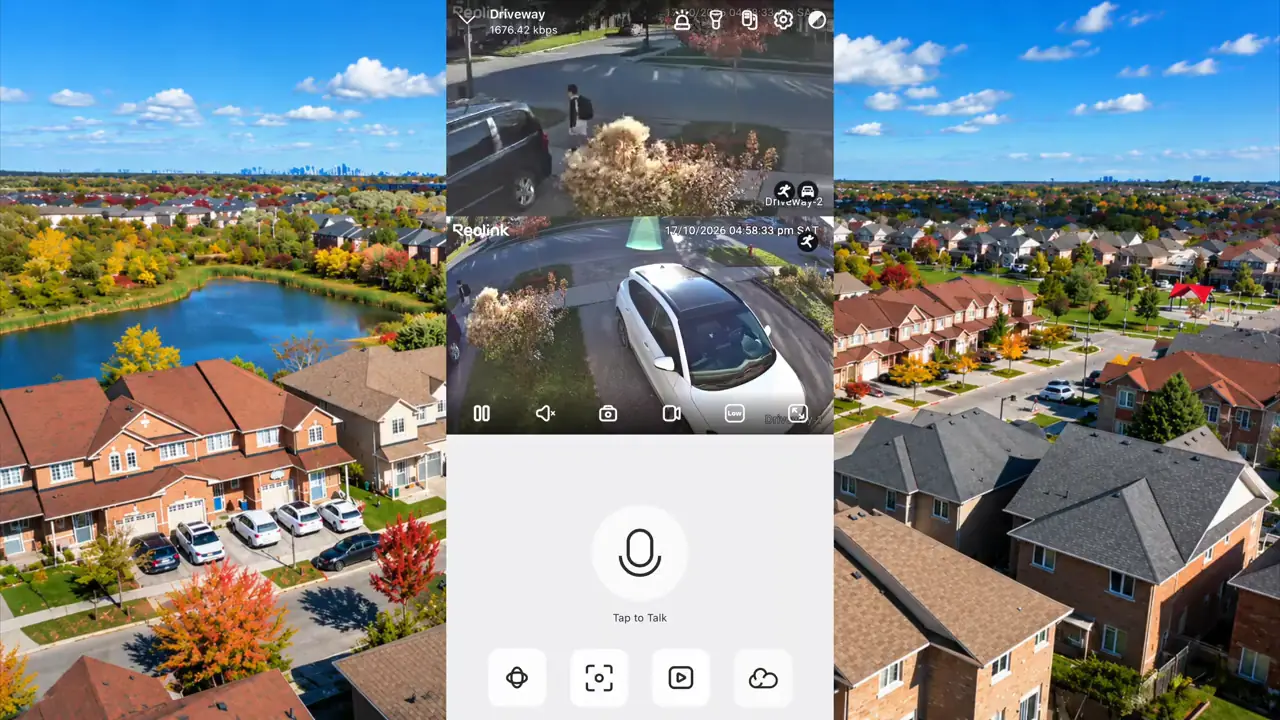
The App’s Playback interface and event thumbnails. The surrounding aerial image is an editorial background.
1 / 2
Who the Reolink OMVI 2i Ultra Fits
I would consider the OMVI 2i Ultra for a driveway or yard where you want a stable overview and an automatically directed second view, especially when running a new power cable is inconvenient. In this installation, it complemented the existing entrance devices instead of replacing the whole system.
The strongest result is the workflow: keep the scene visible, follow movement when needed, then review the recorded event in the same App. Pinpoint adds a practical way to choose the lower camera’s direction yourself. If you are choosing between camera types for the rest of the property, our Reolink camera buyer’s guide covers the broader range; the observations here apply to the OMVI 2i Ultra.
| Your priority | How this setup fits |
|---|---|
| Driveway overview plus tracking | A strong reason to consider the dual-view design. Test the actual routes and obstructions. |
| No new mains or Ethernet run | Battery, solar and Wi-Fi suited this installation. Solar exposure and Wi-Fi still need checking. |
| Local event playback | Demonstrated with microSD storage in the Reolink App. |
| Continuous recording or guaranteed identification | Specify and test those requirements separately; this review does not establish them. |
Before ordering, decide what must stay in view, what you want to follow and what type of recording you need. Then check the mounting location, Wi-Fi and panel exposure. Those decisions matter more than buying on the resolution labels alone.
Frequently Asked Questions
Does the Reolink OMVI 2i Ultra record continuously?
The current specifications list motion-triggered recording, not continuous 24/7 recording. Our installation used microSD event recordings. If you need a complete timeline or pre-event footage, verify a model and recording system that explicitly provide it.
What is the difference between SyncTrack and Pinpoint?
SyncTrack coordinates detection in the upper view with automatic movement of the lower camera. Pinpoint lets you tap an area in the panoramic view to direct the lower camera manually. Both retain the benefit of a separate overview.
Do you need a Reolink Home Hub or a monthly subscription?
Not for the setup shown here. We connected the camera to home Wi-Fi and used local microSD recording with playback in the Reolink App. Home Hub and cloud options are separate choices; confirm current compatibility before purchasing them.
How much sunlight does the solar panel need?
Reolink estimates around 30 minutes of suitable daily sunlight for typical use with the 6W SolarEase panel. We did not validate that estimate across seasons. Shade, weather, temperature and camera activity affect the power balance.
Can you use the camera in an existing Reolink system?
We added it to the homeowner’s existing Reolink App alongside other cameras. That does not mean every cloud plan, hub, NVR or advanced feature works identically across those devices. Check the exact combination you intend to use.
Can one OMVI 2i Ultra replace every camera around a house?
No single mounting point can see through obstacles or cover every entrance. Here, the camera filled a driveway coverage gap while the existing doorbell and entrance camera stayed in place. Plan each required view before reducing camera count.